
Workspace
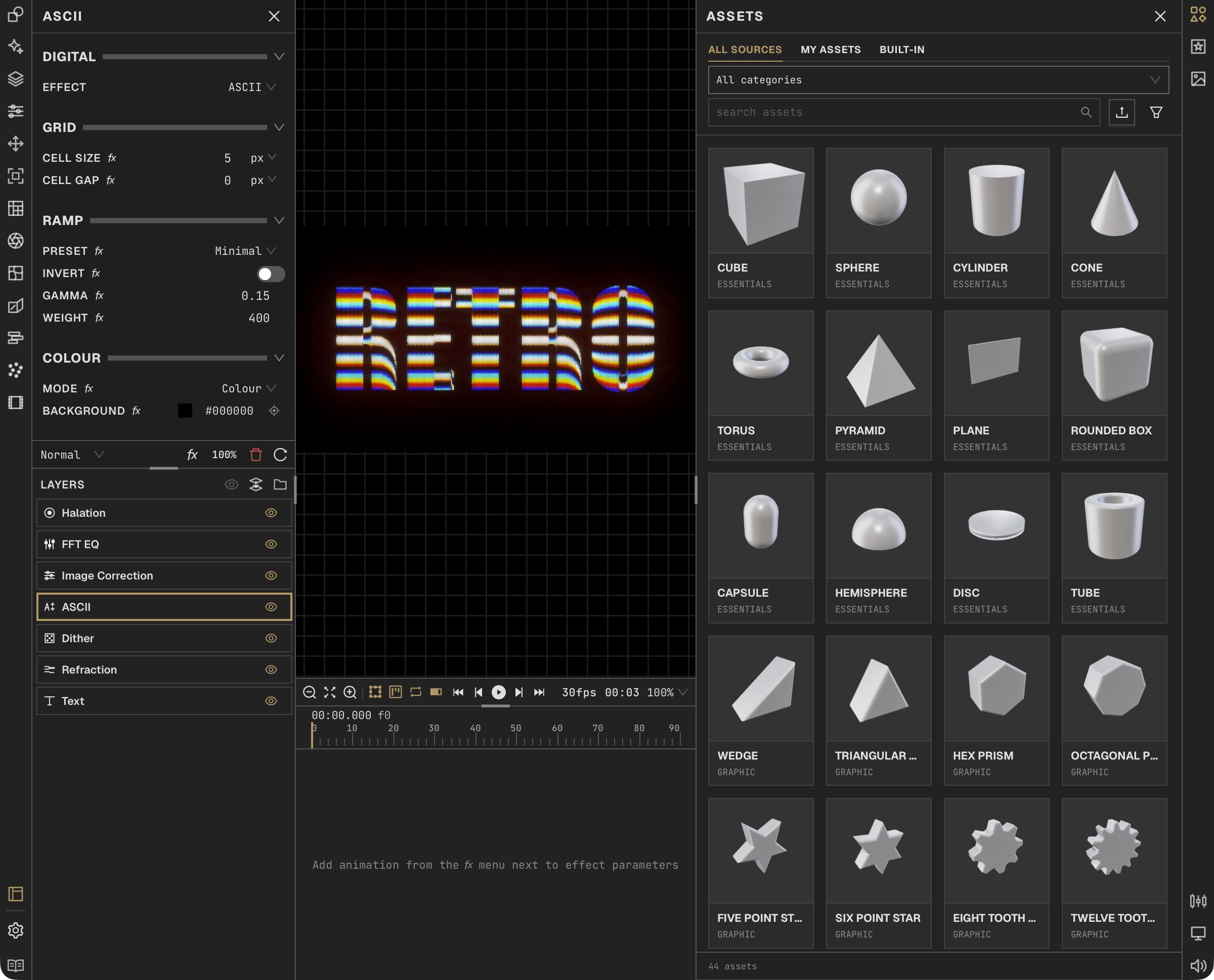
Layers sets the order. The Effect Panel edits your selection. The canvas shows the result.
Add a layer
Open a project, then choose a category and tool from the left effects picker. You can also press Cmd/Ctrl + F, type the effect name and select the result. Click the new row in Layers to show its controls in the Effect Panel; the canvas displays the combined result.
Edit the stack
Click a row in Layers to select it and drag rows to reorder processing. The default display processes bottom to top; Settings → Effects → Layer stack order changes the display direction. Right-click the selection for grouping, mask, duplicate and save-as-preset actions.
Browse libraries
Open Assets, Stock Media, or Presets from the right toolbar. Audio and Canvas Output open in the same right dock.
Choose a mode
Choose Still, Video, or Live in the title bar. Video and Live support the timeline; Live uses fresh audio and video inputs.
Shortcut: Cmd/Ctrl + T
Show or hide panels
Use the toggle above Settings to hide or restore Effects and Layers together. Use the timeline toggle in the canvas footer to hide or restore the ruler, audio tracks and keyframe area. Hidden panes keep their sizes and playback continues. With the timeline hidden, the footer shows the current time beside the frame controls, without a frame count.
Related
In this section
Projects
A .mphase project keeps your layers, media, masks, animation, and project settings together.
Canvas
The canvas is the large composition preview in the centre of the workspace. Its lower edge contains zoom, fit and on-canvas handle controls; the timeline sits below it in Video and Live modes.
Layers
Layers combine media and effects in order. Each layer can have its own visibility, blending, opacity, and mask.
Effect Panel
Select a layer to edit its controls. Open a section for more options, or use Advanced controls where available.
Masking
A mask controls which parts of a layer are visible. Each layer or group can have one mask folder.
Portal Layers
Portal Input captures the composition at one point in the stack. Portal Output composites that saved result later in the stack.
Assets and Stock Media
Keep reusable media in Assets, or browse Stock Media to find source material for a project.
Presets
Save a look once and reuse it. Presets can contain one layer, a group, or a full stack.
Colors and Palettes
Use shared palettes to keep color consistent across effects. Gradient Map gives you an editable color ramp.
Example Projects
Open a bundled example from the Welcome screen to explore an editable stack. Save creates your own copy.
Preview and Performance
Lower preview quality while editing heavy stacks. Still export renders at full quality.
External Inputs
Use MIDI controllers or local OSC messages to control parameters, layer visibility, and playback. Live mode adds continuous input regions; Still uses direct assignments; Video supports playback control.
AI Credits and Setup
Set up your account, manage AI credits and review generation activity. Generation tools live in the GenAI effects category.
AI Control and Integrations
Connect a local AI client to inspect and edit madphase through MCP. The editor must stay open.
Settings and Account
Open Settings to change appearance, playback, AI setup, and your account.