
Effect Panel
Select a layer to edit its controls. Open a section for more options, or use Advanced controls where available.
Scrub controls
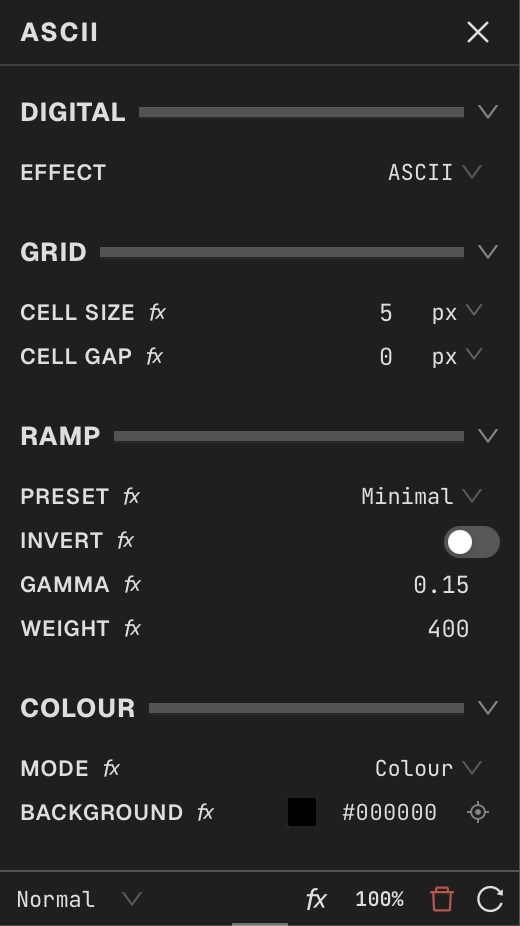
Select a layer in Layers to open its Effect Panel. Click a section heading to expand it; use the section’s advanced control when the setting you need is hidden. Drag sliders or numeric values to adjust them. Horizontal wheel gestures step controls; vertical scrolling moves the panel.
Choose precision with the value ladder
Hold a numeric value, or use the middle mouse button, to open the precision ladder. Move up or down to choose a scale, then drag horizontally.
Change scrubbing speed
Hold Shift for 10× speed or Command on macOS / Ctrl on Windows and Linux for one-tenth speed. Press Escape before releasing to cancel the drag.
Type precise values
Click a numeric value to type. Press Enter to finish typing. Counts use whole steps; continuous controls keep their full precision.
Reset controls
Double-click a label or empty space in its row to reset. Double-clicking the number selects it for editing.
Choose units
Spatial controls offer % and px. Switching units converts the value and its keyframes.
Animate a control
In Video or Live, click its function button to create the first keyframe. Animated numbers show the playhead value in the accent color and are read-only. Click a number to open its sole keyframe or preset menu, or highlight a track with multiple items; its function button always reveals the track. Right-click for more keyframes, presets, modulators, and audio drivers.
Switch modes
Related effects share a mode dropdown. Choose the mode at the top of the panel.