
3D Canvas
Place the incoming composition on a plane and move a 3D camera around it.
Add a 3D Canvas
Build the image or effect stack you want to transform, then choose Transform → 3D Canvas from the effects picker, or Layer → 3D → 3D Canvas from the app menu. Place the layer after the content it should receive in processing order. Select it in Layers to open its camera controls.
Frame the camera
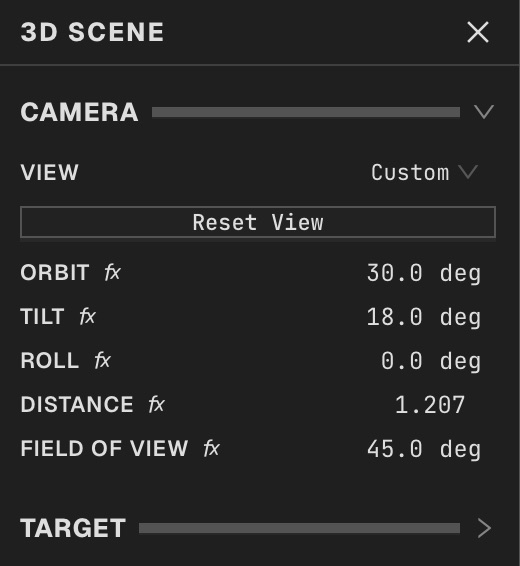
Camera is the first section. Choose a View preset or adjust Orbit, Tilt, Roll, Distance and Field of View. Expand Target to change the point the camera looks at. Reset View returns to the neutral framing.
Move the camera on the canvas
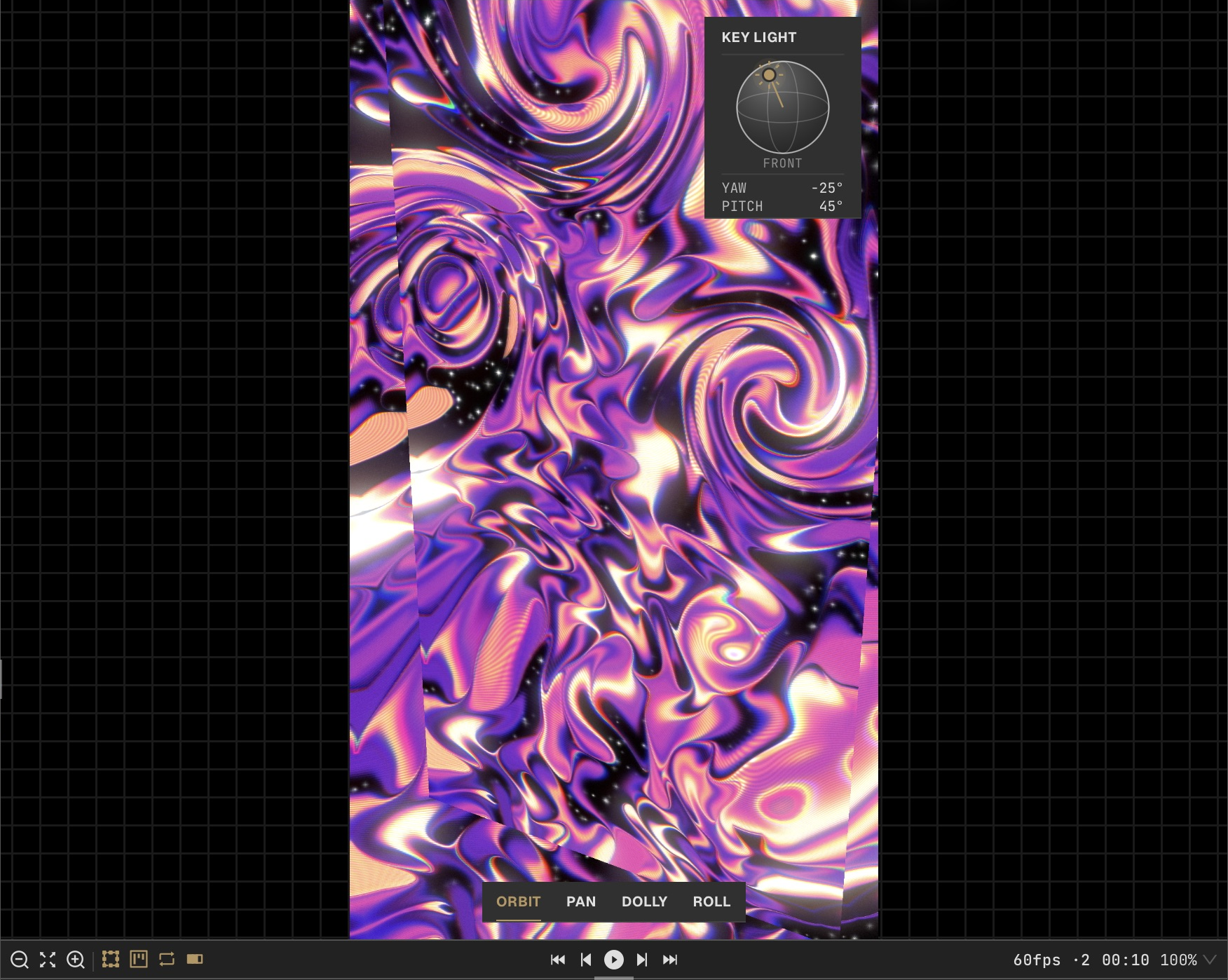
Use Pan, Orbit, Dolly and Roll to navigate directly on the canvas. W selects Pan, E Orbit, R Dolly and T Roll. Hold Shift to snap orbit or roll. Double-click to reset the active mode; press Escape during a drag to restore its starting position.
Set the plane and background
Expand Canvas Material to adjust the image plane. Background offers Layer Input, Transparent and Solid Color. The neutral canvas camera starts without tone mapping or key light so it preserves the incoming image colours.
Add lighting and relief
Expand Lighting when you want the plane to react to light. Image Field can read the incoming image or an embedded stack. Canvas Field Relief supports normal relief: increase its strength and enable lighting to reveal the surface shading. It does not expose the mesh scene’s Displacement or UV Warp modes.
Animate and composite
In Video or Live mode, use the function buttons to animate camera, light, material or field controls. The 3D Canvas remains one stack layer: blend, mask, group and apply later effects as usual. Use the normal still or animation export commands. Depth and Normals output passes belong to mesh scenes, not 3D Canvas.