
3D Augment
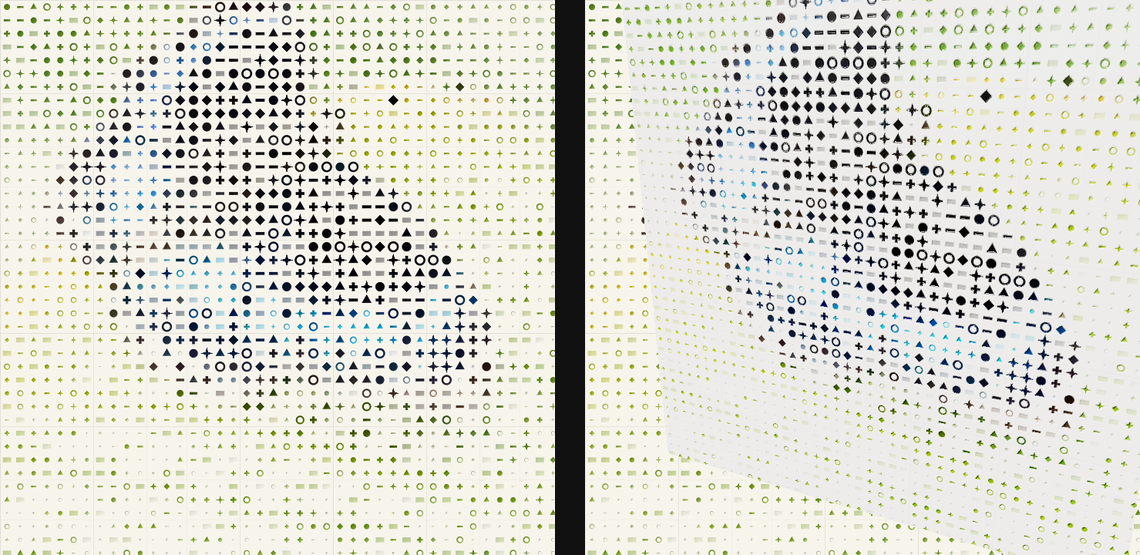
Turn the preceding image or generated material into a lit 3D surface using its structure as height.
Add 3D Augment
Open an image or build the source composition first. Put this effect after the content it should process in stack processing order. Choose Transform → 3D Augment in the effects picker, or search for 3D Augment with Cmd/Ctrl + F. Select the new layer in Layers to open its Effect Panel.
Choose what becomes height
Place 3D Augment immediately after the image or material to augment in processing order. Auto reads that preceding layer. Choose a manual Mode and Height Source to control how another image becomes relief.
Understand Auto mode
Auto reads the immediately preceding enabled layer. It recognizes Reaction Diffusion, Fusion, Anisotropic Kuwahara, Perlin, Worley, Shape Grid, 16-bit Grid and Flow Field. Other sources use generic luminance relief. Use a manual mode and Height Source when you want explicit control.
Light the relief
Increase Depth and adjust Smooth and Contrast to shape the height response. Set Light Angle and Light Elevation to reveal the surface, then tune roughness and specular highlights.
Frame the result
Use the camera controls for tilt, rotation, distance and field of view. Compare the augmented result at full preview quality before increasing depth further.
Set an individual colour
Click the relevant colour swatch to open its picker. Colors and Palettes explains colour values, transparency and the canvas sampling controls where available.
Compare and finish
Toggle the layer eye to compare with the incoming composition. Use the Effect Panel footer for opacity and blend mode, or add a mask to limit the affected area. In Video or Live, use the function menu on a supported control to add keyframes or a driver.
Control reference
Show individual controls
| Control | What it does | Values and animation |
|---|---|---|
| Ambient | Adds light independent of the main light direction to the generated relief. | 0 to 2 Default: 0.38 Continuous keyframes |
| Ambient Color | Colour of the ambient illumination on the generated 3D relief. | Colour Default: #ffffff Colour keyframes |
| Background | Chooses the image, solid colour or transparency behind the rendered relief. | Layer Input / Transparent / Solid Color Default: Layer Input Discrete keyframes |
| Background Color | Colour behind the rendered relief when a solid background is selected. | Colour Default: #000000 Colour keyframes |
| Contrast | Increases contrast in the relief's source-derived height and edge response. | 0 to 1 Default: 0.5 Continuous keyframes |
| Depth | Height displacement of the generated relief; raising it strengthens the surface geometry. | 0 to 0.45 Default: 0.1 Continuous keyframes |
| Distance | Distance of the relief camera from its target. | 0.25 to 6 Default: 1.20710678 Continuous keyframes |
| FOV | Sets the perspective camera's field of view. | 10deg to 120deg Default: 45deg Continuous keyframes |
| Height Source | Chooses the source signal used to build the image's relief height. | Auto / Luminance / Alpha / Red / Green / Blue / Edges Default: Auto Discrete keyframes |
| Invert | Reverses the source-derived height field so raised and recessed detail trade places. | On / Off Default: Off Discrete keyframes |
| Light Angle | Horizontal direction of the directional light illuminating the generated 3D relief. | -180 to 180 Default: -35 Continuous keyframes |
| Light Color | Colour of the directional light illuminating the generated 3D relief. | Colour Default: #ffffff Colour keyframes |
| Light Elevation | Raises or lowers the light above the relief surface. | -90 to 90 Default: 38 Continuous keyframes |
| Light Intensity | Strength of the directional light on the generated relief. | 0 to 4 Default: 1 Continuous keyframes |
| Mode | Auto follows a supported source-aware profile; manual Relief, Glass, Foil, Impasto or Terrain selects the relief material treatment. | Auto / Relief / Glass / Foil / Impasto / Terrain Default: Auto Discrete keyframes |
| Pan X | Moves the relief camera horizontally. | -3 to 3 Default: 0 Continuous keyframes |
| Pan Y | Moves the relief camera vertically. | -3 to 3 Default: 0 Continuous keyframes |
| Pan Depth | Moves the relief camera forward or backward. | -3 to 3 Default: 0 Continuous keyframes |
| Roll | Rolls the relief around the viewing axis. | -180deg to 180deg Default: 0deg Continuous keyframes |
| Roughness | Spreads or tightens specular highlights on the relief surface. | 0.02 to 1 Default: 0.56 Continuous keyframes |
| Smooth | Softens relief detail by reducing the strength of the generated surface normals. | 0 to 1 Default: 0.35 Continuous keyframes |
| Specular | Sets the strength of reflected light on the relief surface. | 0 to 2 Default: 0.38 Continuous keyframes |
| Tilt | Tilts the relief around its horizontal axis. | -85 to 85 Default: 0 Continuous keyframes |
| Rotate | Tilts the relief around its vertical axis. | -180 to 180 Default: 0 Continuous keyframes |