
Export
Export a still image or render the timeline as a video or GIF.
Export a still
Choose File → Export Still Image to open the export dialog, then select PNG, JPEG, WebP, TIFF, BMP, TGA, or EXR. Still export renders at full quality regardless of preview scale.
Shortcut: Cmd/Ctrl + E
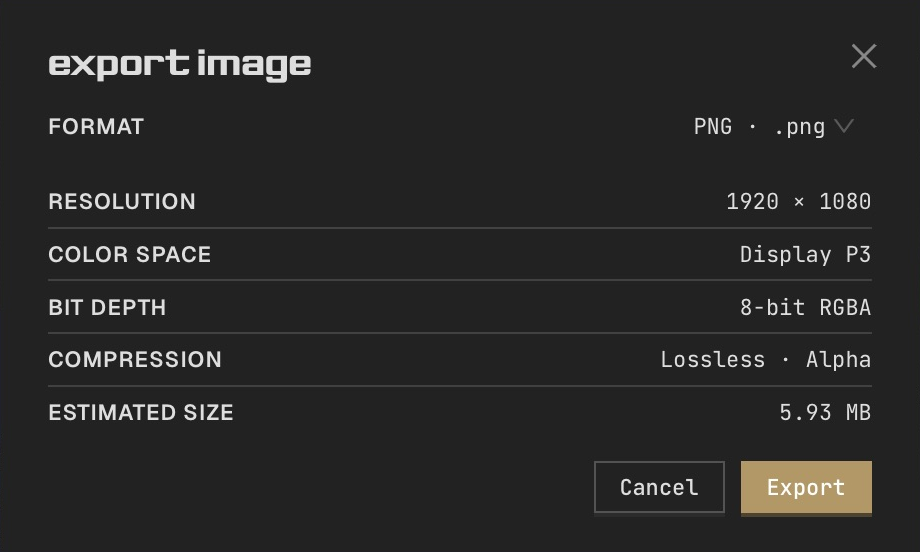
Choose transparency
Use a format that supports alpha when you need a transparent result. Set the canvas background and export options for that format.
Export animation
Choose File → Export Animation to open the animation export dialog, then select MP4, MOV, WebM, or GIF. Available codecs and options depend on the format and your system. Set frame rate, quality, and audio in the dialog.
Shortcut: Cmd/Ctrl + Shift + E
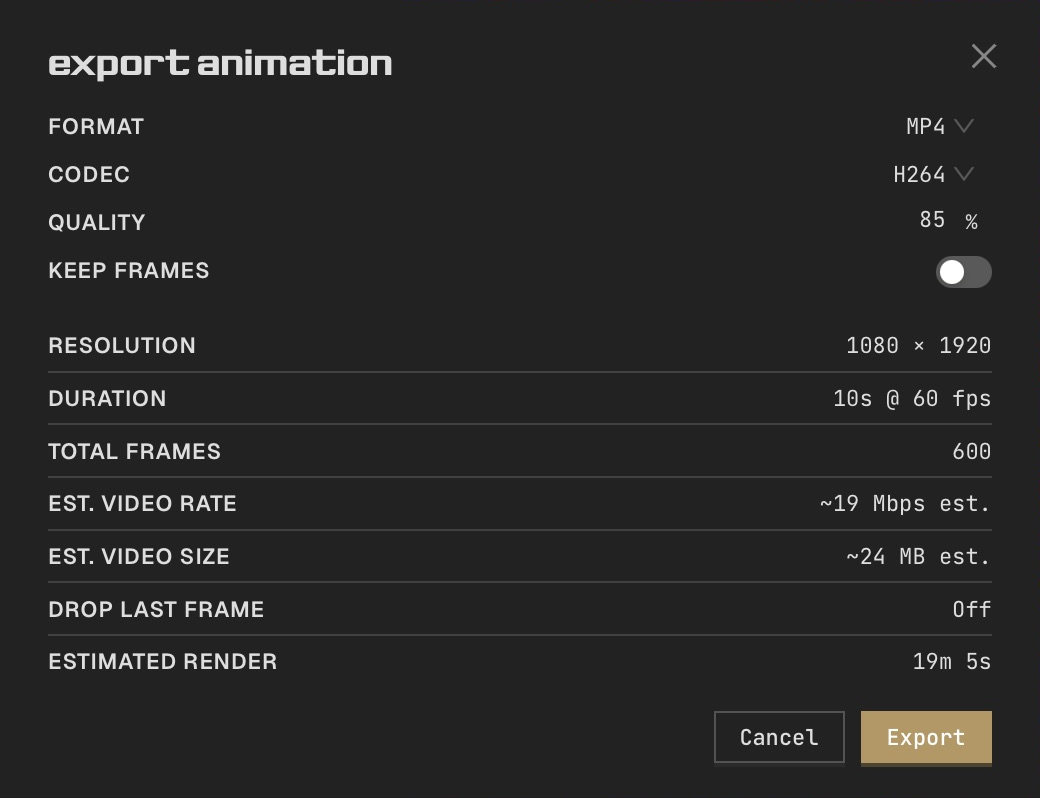
Check timing
Project duration, Frame step, and Drop Last Frame affect the rendered timeline. Preview the loop before exporting.
Follow progress
Watch progress in the export dialog. Choose a destination in the save dialog and confirm any overwrite there. madphase remembers the last successful format, quality, and destination folder. After export, choose Reveal file to locate the result.