
Phoenix Flow
Curl source pixels through a flame-like vector field for turbulent rebirth and flow effects.
Add Phoenix Flow
Open an image or build the source composition first. Put this effect after the content it should process in stack processing order. Choose Distortion → Warp → Phoenix Flow in the effects picker, or search for Phoenix Flow with Cmd/Ctrl + F. Select the new layer in Layers to open its Effect Panel.
Place the flow
Set Center X, Center Y, Scale and Rotation for the field. Increase Power to curl the source through it.
Shape the turbulence
Adjust Flow, Liquidity and Gravity for the movement structure. Add Dispersion for colour splitting and choose Edge for outside-image sampling.
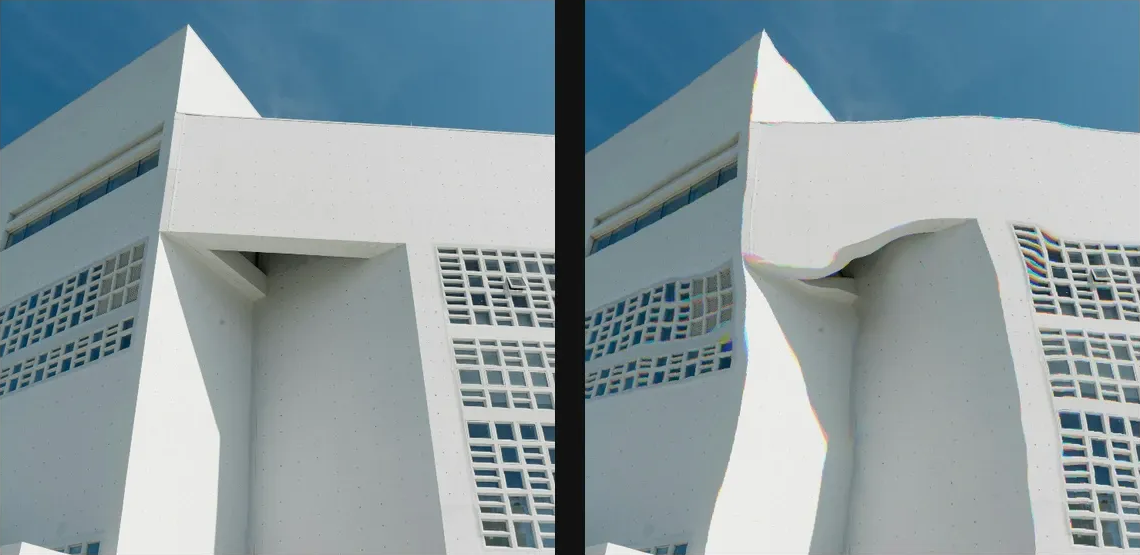
Compare and finish
Toggle the layer eye to compare with the incoming composition. Use the Effect Panel footer for opacity and blend mode, or add a mask to limit the affected area. In Video or Live, use the function menu on a supported control to add keyframes or a driver.
Control reference
Show individual controls
| Control | What it does | Values and animation |
|---|---|---|
| Center X | Horizontal centre point for radial modes. | 0 to 1 Default: 0.5 Continuous keyframes |
| Center Y | Vertical centre point for radial modes. | 0 to 1 Default: 0.5 Continuous keyframes |
| Edge | How samples outside the image are handled. | Clamp / Wrap / Mirror / Transparent Default: Clamp Discrete keyframes |
| Dispersion | Splits R/G/B sampling phases for subtle colour trails. | 0% to 100% Default: 8% Continuous keyframes |
| Gravity | Radial bias: negative pulls inward, positive pushes outward. | -1 to 1 Default: 0.12 Continuous keyframes |
| Liquidity | How many times the flow field advects itself. Higher values create longer ribbons. | 0 to 12 Default: 5 Discrete keyframes |
| Flow | Loop phase. Keyframe 0 to 1 for a seamless Phoenix cycle. | 0 to 1 Default: 0 Continuous keyframes |
| Power | How far the vortex displaces source pixels. | 0% to 100% Default: 36% Continuous keyframes |
| Rotation | Rotates the procedural flow field without rotating the image. | -360° to 360° Default: 0° Continuous keyframes |
| Scale | Feature size of the polar flow field in canvas pixels. | 8 to 600 Default: 140 Continuous keyframes |