
Dimension Lens
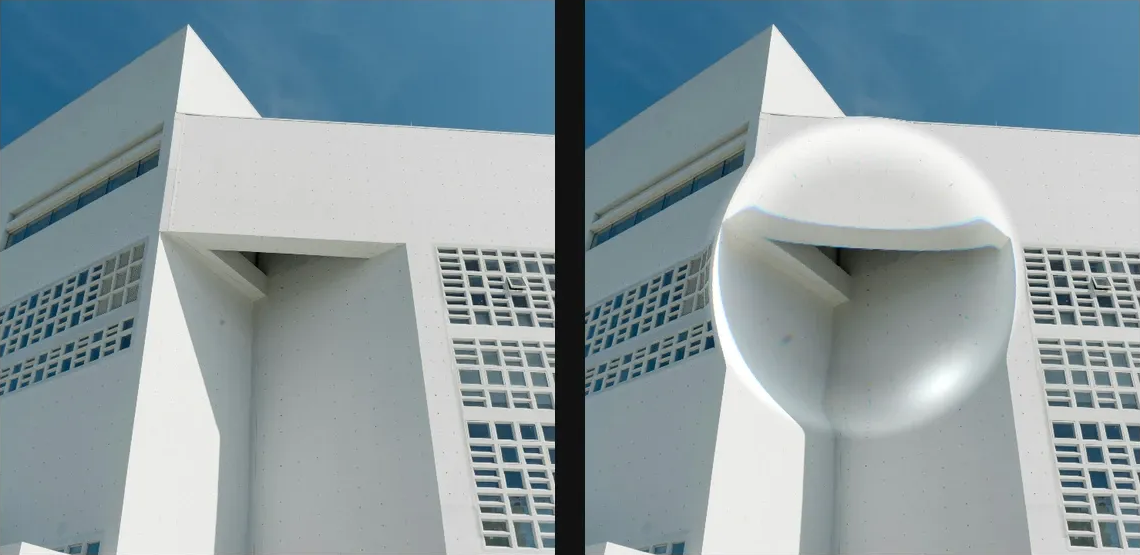
Bend the image inside a bounded lens with Dimension, Observer, and Spoon glass profiles.
Add Dimension Lens
Open an image or build the source composition first. Put this effect after the content it should process in stack processing order. Choose Optics → Lens → Dimension Lens in the effects picker, or search for Dimension Lens with Cmd/Ctrl + F. Select the new layer in Layers to open its Effect Panel.
Place the lens
Choose Mode, then set Center X, Center Y and Radius around the region to bend. Increase Power gradually to establish the lens profile.
Style the edge
Use Rim, Smoothness and Specular for the boundary and highlight. Dispersion adds colour separation; choose Edge for samples outside the source.
Choose the effect field
Open Effect Area and choose Source Alpha, Source Luminance, Layer Mask, Procedural or Image Map as the Source. Refine its range with Black Point, White Point and Invert. Masking explains the shared field sources, procedural shapes and image-map controls.
Compare and finish
Toggle the layer eye to compare with the incoming composition. Use the Effect Panel footer for opacity and blend mode, or add a mask to limit the affected area. In Video or Live, use the function menu on a supported control to add keyframes or a driver.
Control reference
Show individual controls
| Control | What it does | Values and animation |
|---|---|---|
| Center X | Horizontal centre point for radial modes. | 0 to 1 Default: 0.5 Continuous keyframes |
| Center Y | Vertical centre point for radial modes. | 0 to 1 Default: 0.5 Continuous keyframes |
| Dispersion | Splits RGB through the curved lens surface. | 0% to 100% Default: 22% Continuous keyframes |
| Mode | Chooses the visible Dimension Lens profile: balanced dimension bend, convex observer magnifier, or concave spoon warp. | Dimension / Observer / Spoon Default: Dimension Discrete keyframes |
| Power | Signed spherical bend. Negative values create a concave spoon-like warp. | -100% to 100% Default: 68% Continuous keyframes |
| Radius | Sets the spherical lens radius relative to half the canvas diagonal. | 0% to 100% Default: 42% Continuous keyframes |
| Rim | Bright meniscus at the lens edge. | 0% to 100% Default: 38% Continuous keyframes |
| Scale | Zoom inside the lens. Values above 1 magnify the observed region. | 0.25 to 2.5 Default: 1.18 Continuous keyframes |
| Smoothness | Softens the transition back to the untouched image at the lens edge. | 0% to 100% Default: 22% Continuous keyframes |
| Specular | Gloss highlight from the virtual lens surface. | 0% to 100% Default: 48% Continuous keyframes |
| Edge | How samples outside the image are handled. | Clamp / Wrap / Mirror / Transparent Default: Clamp Discrete keyframes |