
Gradient Map
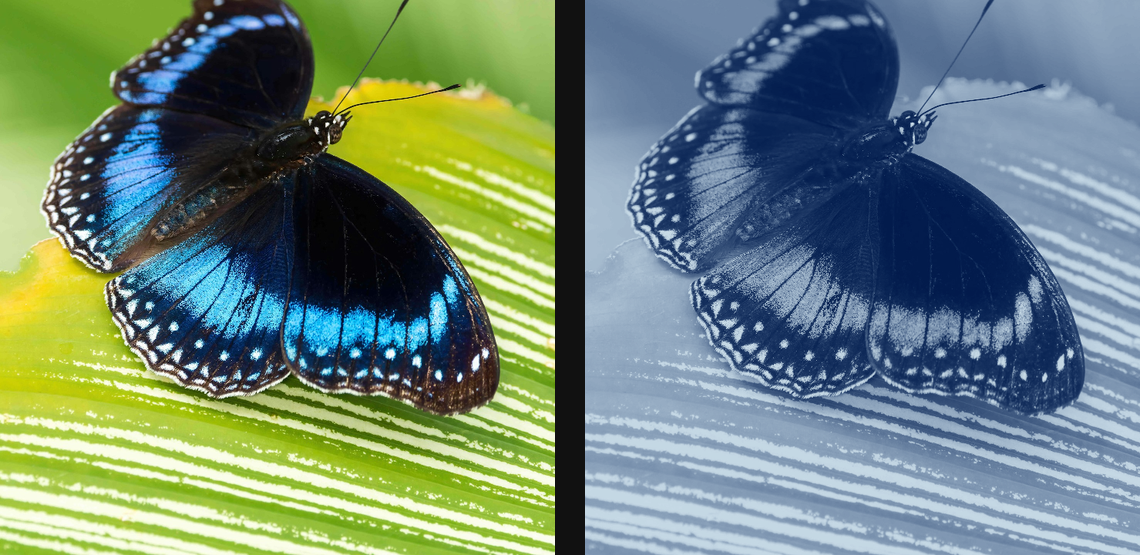
Map image brightness to a colour gradient to recolour shadows, midtones, and highlights.
Add Gradient Map
Open an image or build the source composition first. Put this effect after the content it should process in stack processing order. Choose Image Adjustments → Gradient Map in the effects picker, or search for Gradient Map with Cmd/Ctrl + F. Select the new layer in Layers to open its Effect Panel.
Choose a ramp
Select a Preset or edit Stops. Click an empty point on the ramp to add a stop, drag its marker to position it, and right-click the marker to edit its colour. Dark source tones map to the start; bright tones map to the end. Double-click a stop to remove it, keeping at least two.
Refine the mapping
Adjust Smoothing and Blend for colour transitions, then Strength for the mix with the source. Use Alpha Mode when the ramp should change transparency.
Cycle colours
Change Offset and Cycles to repeat or shift the ramp. In Video or Live, animate Offset for moving colour; enable Loop when the ends should join.
Edit the shared palette
In the Palette section, choose Preset and edit the ramp directly. Colors and Palettes explains adding and moving stops, editing colour and opacity, extracting colours and saving a palette for reuse.
Compare and finish
Toggle the layer eye to compare with the incoming composition. Use the Effect Panel footer for opacity and blend mode, or add a mask to limit the affected area. In Video or Live, use the function menu on a supported control to add keyframes or a driver.
Control reference
Show individual controls
| Control | What it does | Values and animation |
|---|---|---|
| Alpha Mode | How per-stop opacity composites. Opacity fades the gradient over the original; Cutout punches transparency through the layer. | Opacity / Cutout Default: Opacity Not keyframeable |
| Blend | Colour space the gradient blends in. OKLab is perceptually smooth; HSL sweeps hue. | OKLab / RGB / HSL Default: OKLab Not keyframeable |
| Cycles | Repeats the palette over the source luminance range. | 1 to 16 Default: 1 Continuous keyframes |
| Loop | Tile the gradient across the tonal range. Repeat snaps back each cycle; Mirror ping-pongs for a seamless join. | None / Repeat / Mirror Default: None Not keyframeable |
| Offset | Slides the luminance-to-palette mapping; animate it to cycle colours. | 0% to 100% Default: 0% Continuous keyframes |
| Preset | pre-built palette — Custom lets you design your own | Available presets Default: cyanotype Discrete keyframes |
| Smoothing | 0% is banded posterised, 100% is a continuous gradient | 0% to 100% Default: 100% Continuous keyframes |
| Stops | Editable palette stops. Each stop has a position, colour and opacity. | Gradient stops Default: None Per-stop keyframes |
| Strength | how strongly the gradient replaces the original | 0% to 100% Default: 100% Continuous keyframes |