
Crop / Rotate
Crop and rotate the composition into a new frame, with freeform and preset aspect ratios.
Add Crop / Rotate
Open an image or build the source composition first. Put this effect after the content it should process in stack processing order. Choose Transform → Crop / Rotate in the effects picker, or search for Crop / Rotate with Cmd/Ctrl + F. Select the new layer in Layers to open its Effect Panel.
Set the frame
Choose an Aspect Ratio Preset or unlock the aspect for a freeform frame. Drag the crop handles on the canvas, or type Width, Height and position values.
Straighten and inspect
Adjust Rotate and use Grid for alignment. Check the composition after the crop: later layers receive the new frame. Use Canvas Size when changing the project working area instead.
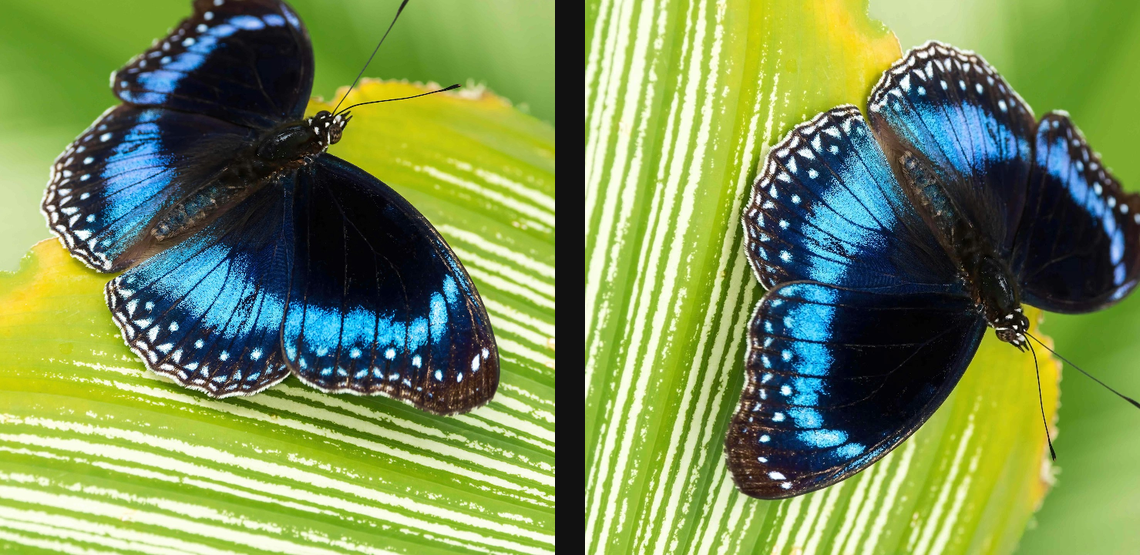
Compare and finish
Toggle the layer eye to compare with the incoming composition. Use the Effect Panel footer for opacity and blend mode, or add a mask to limit the affected area. In Video or Live, use the function menu on a supported control to add keyframes or a driver.
Control reference
Show individual controls
| Control | What it does | Values and animation |
|---|---|---|
| Aspect Orientation | Switches the crop's aspect ratio between portrait and landscape. | Landscape / Portrait Default: Landscape Not keyframeable |
| Aspect Ratio Preset | Constrains the crop rectangle to a chosen aspect ratio, or leaves it free. | Original / Freeform / Square (1:1) / 16:9 / 10:8 / 7:5 / 4:3 / 5:3 / 3:2 Default: Freeform Not keyframeable |
| Rotate | Rotates the output canvas around the cropped image. | 0° / 90° CW / 180° / 90° CCW Default: 0° Discrete keyframes |
| Flip Horizontal | Flips the crop horizontally. | On / Off Default: Off Discrete keyframes |
| Flip Vertical | Flips the crop vertically. | On / Off Default: Off Discrete keyframes |
| Grid | Composition guide drawn inside the crop rect on the canvas. UI only — never rendered into the output. | Off / Rule of thirds / Golden ratio / 4×4 grid / Diagonals Default: Off Not keyframeable |
| Lock Aspect | Keeps X and Y scale linked while resizing. | On / Off Default: Off Not keyframeable |
| Transform / Anchor / X | Sets the horizontal anchor used for scale and rotation. | 0 to 1 Default: 0.5 Continuous keyframes |
| Transform / Anchor / Y | Sets the vertical anchor used for scale and rotation. | 0 to 1 Default: 0.5 Continuous keyframes |
| Angle | Rect tilt in degrees, clockwise positive on screen. The output is axis-aligned at the rect's W×H — content is straightened (raw editor-style). | -360° to 360° Default: 0° Continuous keyframes |
| Width | Scales the layer width around the anchor point. | 0.05 to 8 Default: 1 Continuous keyframes |
| Height | Scales the layer height around the anchor point. | 0.05 to 8 Default: 1 Continuous keyframes |
| Transform / Translate / X | Moves the layer horizontally in canvas space. | -2 to 3 Default: 0.5 Continuous keyframes |
| Transform / Translate / Y | Moves the layer vertically in canvas space. | -2 to 3 Default: 0.5 Continuous keyframes |