
Smart Select
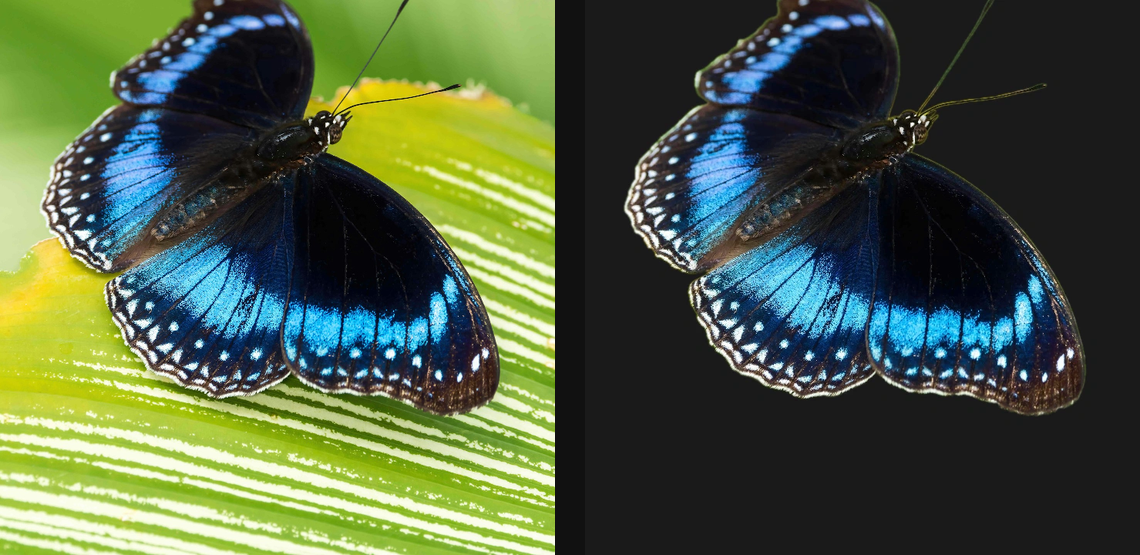
Find subjects automatically or mark points to isolate foreground, background, and specific objects as a mask.
Add Smart Select
Open the image you want to select from. Put this layer after that image in processing order and select it before using the canvas tool. Choose Select & Mask → Select → Smart Select in the effects picker, or search for Smart Select with Cmd/Ctrl + F. Select the new layer in Layers to open its Effect Panel.
Choose the subject
Set Subject to Foreground or Background. Set Selection to Auto for automatic subject detection, or Pin to choose an object. In Pin mode, click the subject on the canvas; Add pin and its Position controls let you add or move points from the panel.
Generate the mask
In Auto mode, click Generate. Pin clicks update the selected object; use Regenerate when the upstream image or panel-edited pins change. Auto-regenerate on upstream change refreshes the result when enabled.
Refine the edge
Tune Threshold, Softness, Feather and Cleanup. Choose Output and Invert as needed, then use the result in a mask folder to control another layer.
Set an individual colour
Click the relevant colour swatch to open its picker. Colors and Palettes explains colour values, transparency and the canvas sampling controls where available.
Compare and finish
Toggle the layer eye to compare with the incoming composition. Use the Effect Panel footer for opacity and blend mode, or add a mask to limit the affected area. In Video or Live, use the function menu on a supported control to add keyframes or a driver.
Control reference
Show individual controls
| Control | What it does | Values and animation |
|---|---|---|
| Auto-regenerate on upstream change | Rebuilds the generated selection automatically when its source changes. | On / Off Default: Unset Discrete keyframes |
| Cleanup | Removes small mask irregularities over this pixel radius. | 0px to 32px Default: 0px Continuous keyframes |
| Feather | Softens the generated selection boundary over this pixel radius. | 0px to 64px Default: 1px Continuous keyframes |
| Fill | Colour used when the generated selection outputs a filled silhouette. | Colour Default: #ff0000 Colour keyframes |
| Invert | Reverses the generated foreground and background coverage. | On / Off Default: Off Not keyframeable |
| Output | Chooses whether Smart Select outputs a cutout, mask or coloured fill. | Cutout / Mask / Fill Default: Cutout Discrete keyframes |
| Subject | Chooses whether Smart Select keeps the foreground subject or the background. | Foreground / Background Default: Foreground Discrete keyframes |
| Selection | Selects the whole subject automatically or uses the positive and negative canvas prompts. | Auto / Pin Default: Auto Discrete keyframes |
| Sam Prompts | Positive and negative canvas points that tell Smart Select what to include or exclude. | Canvas points Default: None Per-point keyframes |
| Sam Prompts / * / X | Horizontal position of a positive or negative canvas prompt. | 0 to 1 Default: Per point Continuous keyframes |
| Sam Prompts / * / Y | Vertical position of a positive or negative canvas prompt. | 0 to 1 Default: Per point Continuous keyframes |
| Softness | Width of the confidence transition around the selection threshold. | 0 to 1 Default: 0.1 Continuous keyframes |
| Threshold | Foreground confidence needed for a pixel to be included in the generated selection. | 0 to 1 Default: 0.5 Continuous keyframes |