
Film Grain
Add photographic grain with tonal response, clumping, and per-channel variation.
Add Film Grain
Open an image or build the source composition first. Put this effect after the content it should process in stack processing order. Choose Layer → Filter → Noise & Grain → Film Grain in the effects picker, or search for Film Grain with Cmd/Ctrl + F. Select the new layer in Layers to open its Effect Panel.
Set grain size and strength
Adjust Size and Intensity while viewing a representative area at full preview quality. Fine grain is easier to judge at the final image scale.
Shape the response
Use Weighting to change the tonal response and Chromaticity or Monochrome to control colour variation. Change Seed for a different grain arrangement.
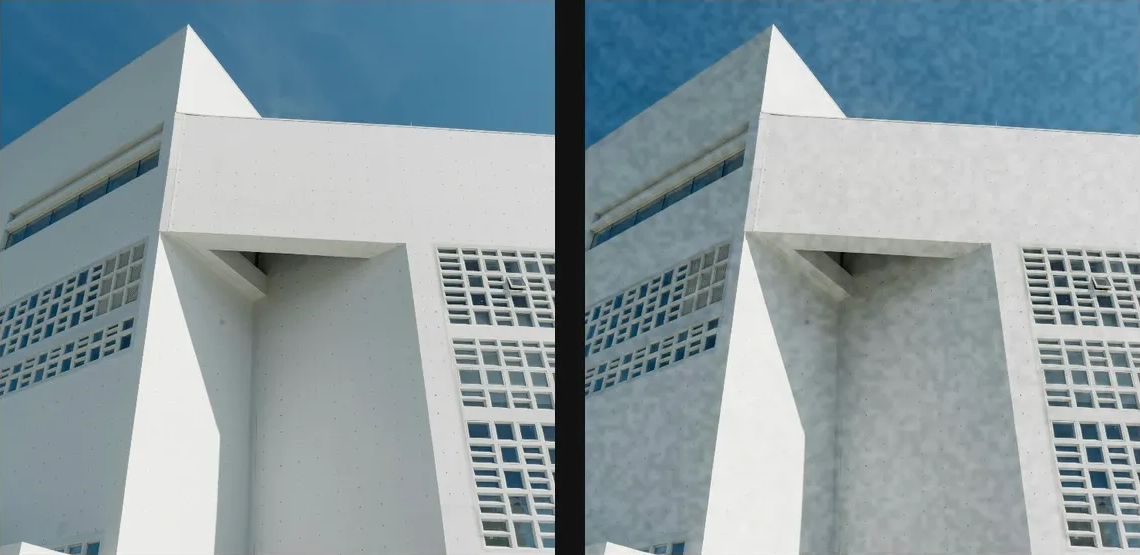
Compare and finish
Toggle the layer eye to compare with the incoming composition. Use the Effect Panel footer for opacity and blend mode, or add a mask to limit the affected area. In Video or Live, use the function menu on a supported control to add keyframes or a driver.
Control reference
Show individual controls
| Control | What it does | Values and animation |
|---|---|---|
| Chromaticity | 0% is greyscale grain, 100% is full per-channel colour speckle | 0% to 100% Default: 30% Continuous keyframes |
| Size | grain clump size — larger reads as higher-ISO film stock | 0 to 20 %; 1 to 500 px (typed input: 1 to 2000) Default: 0.1 % Continuous keyframes |
| Intensity | overall grain magnitude | 0% to 100% Default: 15% Continuous keyframes |
| Monochrome | force greyscale grain (overrides Chromaticity) | On / Off Default: Off Discrete keyframes |
| Seed | change for a different random pattern | 0 to 999 Default: 0 Discrete keyframes |
| Weighting | where grain shows — Mid-tone is real-film behaviour | Mid-tone / Uniform / Shadow / Highlight Default: Mid-tone Discrete keyframes |