
RGB Shift
Offset red, green, and blue channels separately for classic chromatic glitch fringing.
Add RGB Shift
Open an image or build the source composition first. Put this effect after the content it should process in stack processing order. Choose Glitch → Channel Drift → RGB Shift in the effects picker, or search for RGB Shift with Cmd/Ctrl + F. Select the new layer in Layers to open its Effect Panel.
Separate the channels
Adjust Red Offset X/Y, Green Offset X/Y and Blue Offset X/Y independently. Small opposing offsets produce clear chromatic fringes.
Control the composition
Compare high-contrast edges and choose units appropriate to the final canvas. Use a mask for localized splitting or footer opacity for a subtler mix.
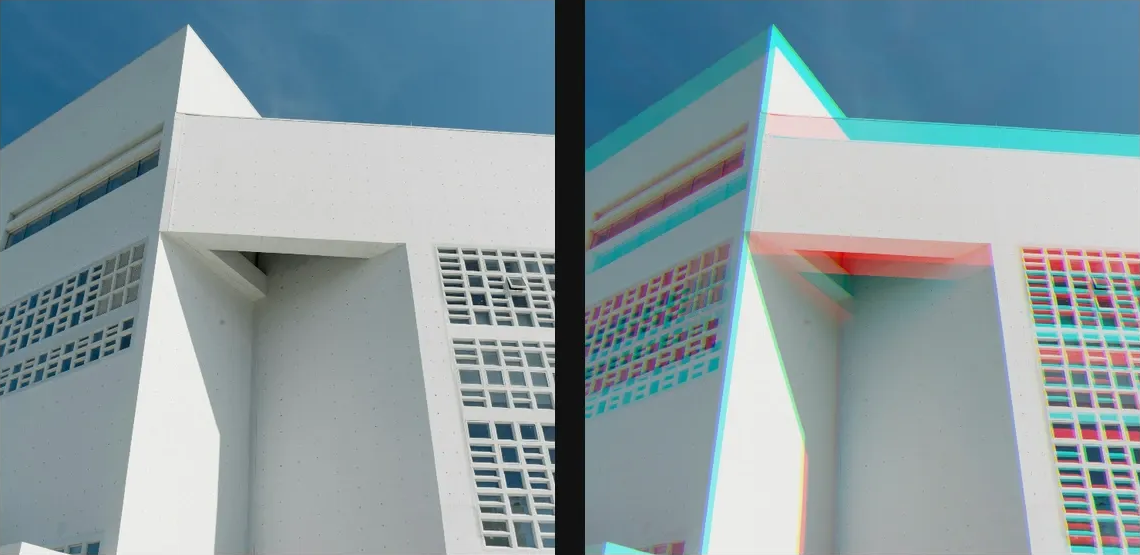
Compare and finish
Toggle the layer eye to compare with the incoming composition. Use the Effect Panel footer for opacity and blend mode, or add a mask to limit the affected area. In Video or Live, use the function menu on a supported control to add keyframes or a driver.
Control reference
Show individual controls
| Control | What it does | Values and animation |
|---|---|---|
| Blue Offset X | shifts the blue channel horizontally | -50 to 50 Default: -0.6 Continuous keyframes |
| Blue Offset Y | shifts the blue channel vertically | -50 to 50 Default: 0 Continuous keyframes |
| Green Offset X | shifts the green channel horizontally | -50 to 50 Default: 0 Continuous keyframes |
| Green Offset Y | shifts the green channel vertically | -50 to 50 Default: 0 Continuous keyframes |
| Red Offset X | shifts the red channel horizontally | -50 to 50 Default: 0.6 Continuous keyframes |
| Red Offset Y | shifts the red channel vertically | -50 to 50 Default: 0 Continuous keyframes |