
Colors and Palettes
Use shared palettes to keep color consistent across effects. Gradient Map gives you an editable color ramp.
Choose a palette
Select an effect with palette tools, such as Gradient Map, and open its Palette section. Choose a built-in preset; saved palettes and colours extracted from the input appear in their own groups where supported. Check the canvas to see how the selected palette maps to that effect.
Edit a gradient
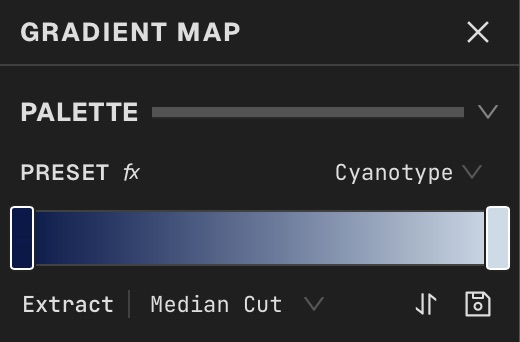
Add Image Adjustments → Gradient Map. In its Palette section, choose Preset and edit the ramp directly. Click an empty position on the gradient ramp to add a stop. Drag its marker to move it, right-click to edit its colour, or select it to use the stop inspector. Double-click a marker to remove it; at least two stops remain. Choose the colour blending method and compare shadows, midtones and highlights on the canvas.
Save or extract
In Gradient Map, click Extract beside the palette controls to sample the incoming image; choose the extraction algorithm to compare results. Click the Save palette icon to name and save an edited ramp. Choose it from the saved palette group in another effect that supports it.
Animate color
Keyframe gradient offset or cycling controls to move colors through the image. Preview the loop seam when using repeated cycles.
Use print colors
Print effects offer ink, paper, palette, and color-mode controls. Choose the mode first, then tune the pattern and density.
Choose a single colour
Click a colour swatch in the Effect Panel to open its picker, then choose a colour or enter its value. Alpha is available only on controls that support transparency. Where shown, click Sample colour from canvas, then click the composition to use that pixel; click the sample button again or press Escape to cancel. Canvas explains working with the preview.