
Live Video
Capture a camera, capture card, screen, or window as a live media layer. Transform, mask, and composite the current capture with the same layer controls as other media.
Add Live Video
Open a project or create a blank one, then add the source layer. Choose Primitive → Media → Live Video in the effects picker, or search for Live Video with Cmd/Ctrl + F. Select the new layer in Layers to open its Effect Panel.
Choose a source
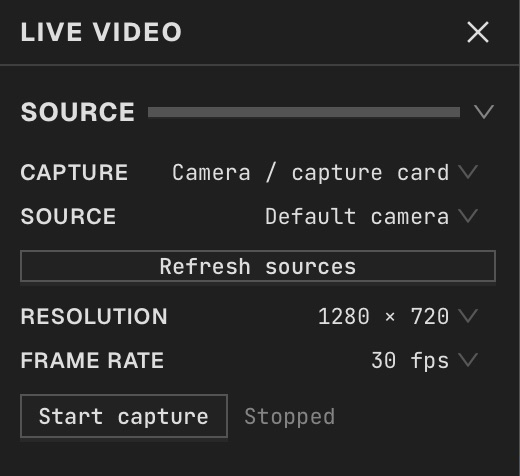
Select Camera / capture card, Screen or Window, refresh the source list, then choose a device or target.
Start capture
Set capture size and frame-rate cap, then click Start capture. Allow camera or screen-recording access when your operating system asks. The current capture becomes this layer’s source.
Compose the input
Move, scale, rotate, mask and blend the live input like other media. Use its transform controls or canvas gizmo. Live sources have no clip seek, trim or loop controls.
Stop and restart
Use Stop capture when finished. Disabling or removing the layer also stops capture; use Start capture to resume. Up to four live sources can be active.
Save and reopen
Projects retain the source settings. Capture reopens stopped and starts only when you explicitly start it again.
Export a moment
Export a still from the current captured frame. Live capture is not replayable footage for timeline export; use imported video for repeatable animation.
Compare and finish
Toggle the layer eye to compare with the incoming composition. Use the Effect Panel footer for opacity and blend mode, or add a mask to limit the affected area. In Video or Live, use the function menu on a supported control to add keyframes or a driver.
Control reference
Show individual controls
| Control | What it does | Values and animation |
|---|---|---|
| Device or target | Chooses the live device or desktop target from the source list. | Available capture devices or targets Default: Empty Not keyframeable |
| Capture frame rate | Caps how often new capture frames are requested. | 15 / 30 / 60 fps Default: 30 Not keyframeable |
| Capture source | Chooses a camera, capture card, screen, or window as the live source. | Camera / Screen / Window Default: camera Not keyframeable |
| Capture size | Sets the maximum capture size. The source keeps its aspect ratio. | 640 × 480 / 1280 × 720 / 1920 × 1080 Default: 1280 × 720 Not keyframeable |
| Lock Aspect | Keeps X and Y scale linked while resizing. | On / Off Default: Off Not keyframeable |
| Transform / Anchor / X | Sets the horizontal anchor used for scale and rotation. | 0 to 1 Default: 0.5 Continuous keyframes |
| Transform / Anchor / Y | Sets the vertical anchor used for scale and rotation. | 0 to 1 Default: 0.5 Continuous keyframes |
| Transform / Rotate | Rotates the layer around its anchor point. | -360 to 360 Default: 0 Continuous keyframes |
| Transform / Scale / X | Scales the layer width around the anchor point. | 0.05 to 8 Default: 1 Continuous keyframes |
| Transform / Scale / Y | Scales the layer height around the anchor point. | 0.05 to 8 Default: 1 Continuous keyframes |
| Transform / Translate / X | Moves the layer horizontally in canvas space. | -2 to 3 Default: 0.5 Continuous keyframes |
| Transform / Translate / Y | Moves the layer vertically in canvas space. | -2 to 3 Default: 0.5 Continuous keyframes |