
Luma Key
Use brightness thresholds to turn dark or bright regions into layer transparency.
Add Luma Key
Open an image or build the source composition first. Put this effect after the content it should process in stack processing order. Choose Select & Mask → Key → Luma Key in the effects picker, or search for Luma Key with Cmd/Ctrl + F. Select the new layer in Layers to open its Effect Panel.
Choose which tones to remove
Set Source and Key Out, then move Threshold until the unwanted dark or bright regions become transparent.
Refine the transition
Use Softness for a gradual key and Feather for edge smoothing. Strength blends the keyed result with the original alpha. View against a contrasting background to judge the edge.
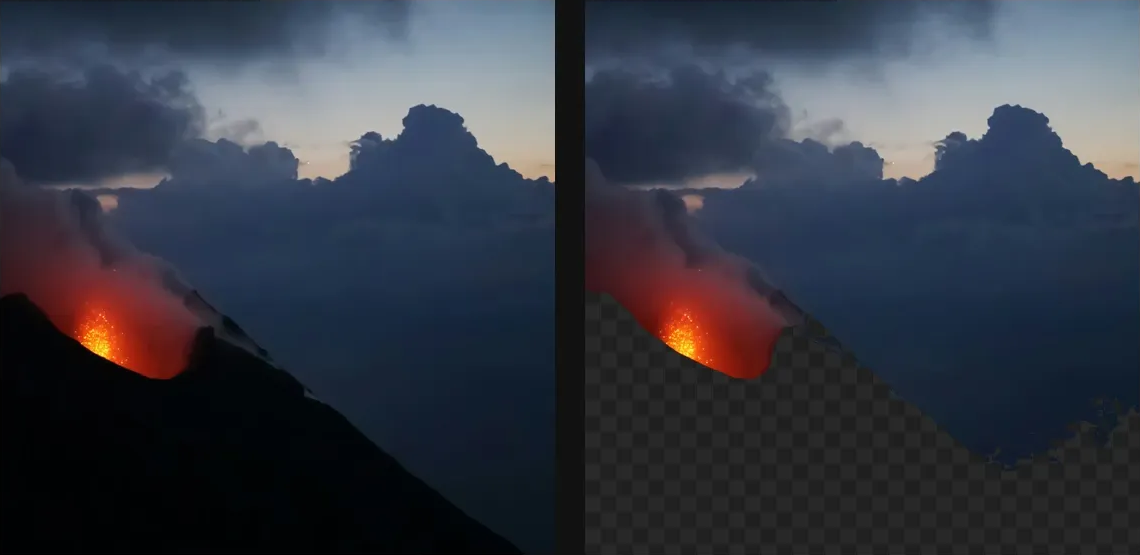
Compare and finish
Toggle the layer eye to compare with the incoming composition. Use the Effect Panel footer for opacity and blend mode, or add a mask to limit the affected area. In Video or Live, use the function menu on a supported control to add keyframes or a driver.
Control reference
Show individual controls
| Control | What it does | Values and animation |
|---|---|---|
| Feather | Blurs the matte to smooth grain / anti-alias the holes. | 0 to 100 %; 1 to 2000 px (typed input: 1 to 8000) Default: 0 % Continuous keyframes |
| Key Out | Shadows makes dark areas transparent; Highlights makes bright areas transparent. | Shadows / Highlights Default: Shadows Not keyframeable |
| Softness | Tonal ramp around the threshold. 0 = a hard, binary key. | 0% to 100% Default: 0% Continuous keyframes |
| Source | Which value the key reads. Luminance is the usual choice; Min/Max key on the darkest/brightest channel. | Luminance / Min / Max / Red / Green / Blue Default: Luminance Not keyframeable |
| Strength | Blends the keyed alpha with the original source alpha. | 0% to 100% Default: 100% Continuous keyframes |
| Threshold | Luminance cutoff separating keyed pixels from retained pixels. | 0% to 100% Default: 10% Continuous keyframes |