
Wax
Coat the image in soft waxy material with smoothed relief, translucency, and surface highlights.
Add Wax
Open an image or build the source composition first. Put this effect after the content it should process in stack processing order. Choose Material → Damage → Wax in the effects picker, or search for Wax with Cmd/Ctrl + F. Select the new layer in Layers to open its Effect Panel.
Soften the coating
Increase Blur to smooth the source and Glow for the wax-like luminous surface.
Balance the finish
Adjust Brightness and Aberration, then compare with the original. Use footer opacity if the coating hides too much image detail.
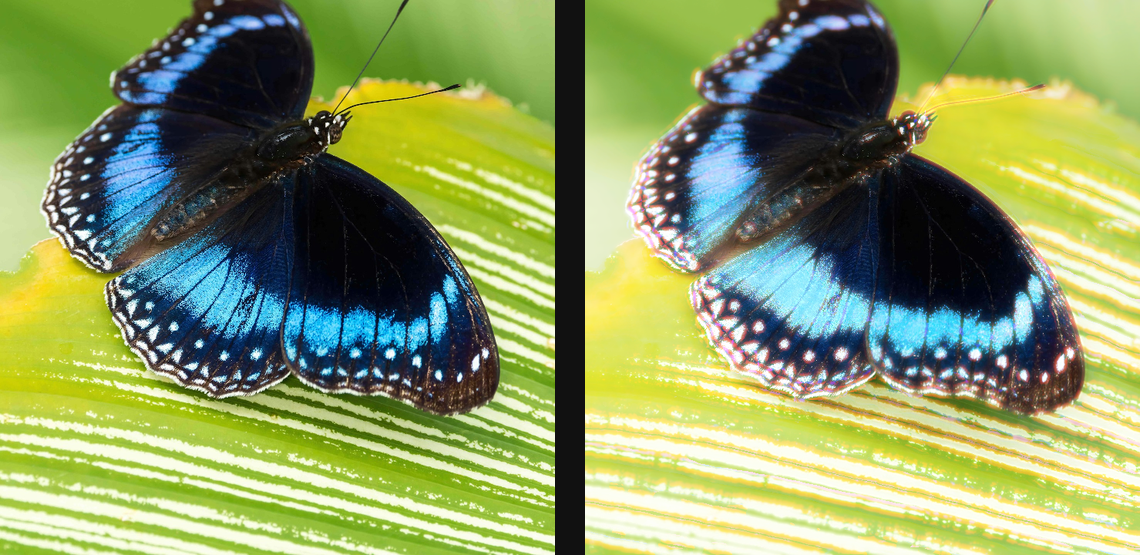
Compare and finish
Toggle the layer eye to compare with the incoming composition. Use the Effect Panel footer for opacity and blend mode, or add a mask to limit the affected area. In Video or Live, use the function menu on a supported control to add keyframes or a driver.
Control reference
Show individual controls
| Control | What it does | Values and animation |
|---|---|---|
| Aberration | RGB channel spread along waxy highlight edges | 0% to 100% Default: 28% Continuous keyframes |
| Blur | soft dilation and blur radius for the wax mask | 0% to 100% Default: 16% Continuous keyframes |
| Brightness | strength of the glossy lifted wax layer | 0 to 5 Default: 0.9 Continuous keyframes |
| Glow | screened bloom inside the wax highlight layer | 0% to 200% Default: 78% Continuous keyframes |