
Drop Shadow
Cast a configurable shadow behind the layer, with offset, blur, opacity, colour, and blend controls.
Add Drop Shadow
Prepare an isolated image, text or shape with transparency. Put this effect after that source; use a self-contained group to keep its input separate from the rest of the composition. Choose Layer → Border → Drop Shadow in the effects picker, or search for Drop Shadow with Cmd/Ctrl + F. Select the new layer in Layers to open its Effect Panel.
Build the shadow
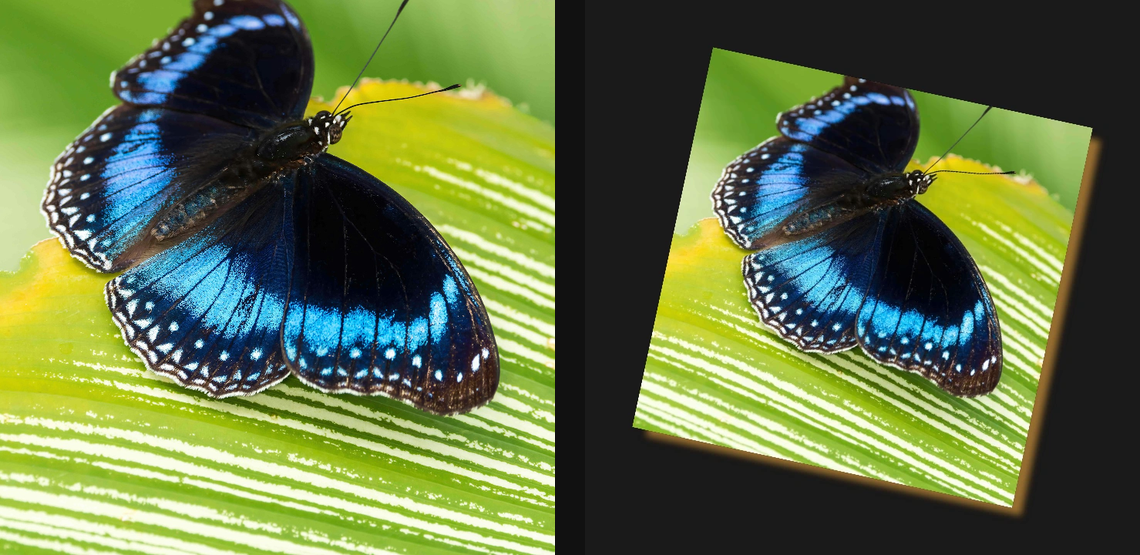
Use a source with transparency so its silhouette is clear. Set Color and Opacity, then move the shadow with Offset X and Offset Y.
Soften or expand it
Increase Blur for a soft shadow and Spread for a wider silhouette. If you need a different casting shape, expand Caster Field and choose or refine its source. Compare with the layer eye before increasing opacity.
Set an individual colour
Click the relevant colour swatch to open its picker. Colors and Palettes explains colour values, transparency and the canvas sampling controls where available.
Choose the effect field
Open Caster Field and choose Source Alpha, Source Luminance, Layer Mask, Procedural or Image Map as the Source. Refine its range with Black Point, White Point and Invert. Masking explains the shared field sources, procedural shapes and image-map controls.
Compare and finish
Toggle the layer eye to compare with the incoming composition. Use the Effect Panel footer for opacity and blend mode, or add a mask to limit the affected area. In Video or Live, use the function menu on a supported control to add keyframes or a driver.
Control reference
Show individual controls
| Control | What it does | Values and animation |
|---|---|---|
| Blur | Softens the boundary of the generated shadow or outer glow. | 0 to 10 %; 1 to 256 px (typed input: 1 to 1000) Default: 0.8 % Continuous keyframes |
| Caster Field / Black Point | Input level treated as black by the shadow caster field. | 0 to 1 Default: 0 Continuous keyframes |
| Caster Field / Blur Px | Blurs the shadow caster field before it is used, measured in pixels. | 0 to 64 Default: 0 Continuous keyframes |
| Caster Field / Invert | Reverses the black and white values of the shadow caster field. | On / Off Default: Off Not keyframeable |
| Caster Field / Source / Kind | Chooses source alpha, source luminance, a layer mask, a procedural shape or an image map for the shadow caster field. | Source Alpha / Source Luminance / Layer Mask / Procedural / Image Map Default: sourceAlpha Not keyframeable |
| Caster Field / White Point | Input level treated as white by the shadow caster field. | 0 to 1 Default: 1 Continuous keyframes |
| Color | Colour of the generated shadow, outline or outer glow. | Colour Default: #000000 Not keyframeable |
| Offset X | Moves the shadow horizontally relative to the layer silhouette. | -0.5 to 0.5 Default: 0.02 Continuous keyframes |
| Offset Y | Moves the shadow vertically relative to the layer silhouette. | -0.5 to 0.5 Default: 0.02 Continuous keyframes |
| Opacity | Opacity of the generated layer style before it is composited with the source. | 0 to 1 Default: 0.75 Continuous keyframes |
| Spread | Expands the shadow silhouette before its blur is applied. | 0 to 10 %; 1 to 256 px (typed input: 1 to 1000) Default: 0 % Continuous keyframes |