
Audio and Audio Drivers
Use a soundtrack or live input to drive controls. Open Audio from the right toolbar to choose the source.
Choose audio
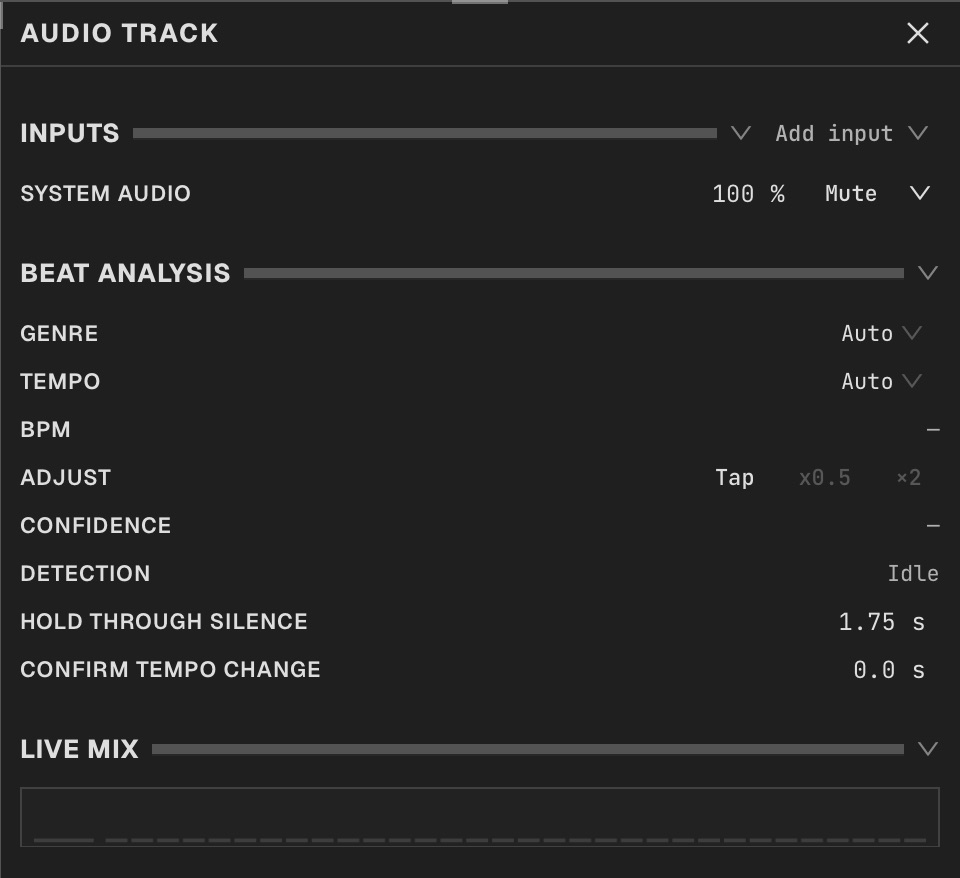
Open Audio from the right toolbar. In Inputs, click Add input. Choose Add audio files… for a soundtrack, Add video audio or Add layer audio… for available video soundtracks, or Live audio… for System audio or a device. Play file-backed audio in Video; choose Live and press Play for live inputs. Check the level meter before adding a driver.
Place a soundtrack
For file or video audio, adjust Volume, Start, End, Source start, and Duration in the Audio inspector.
Add a driver
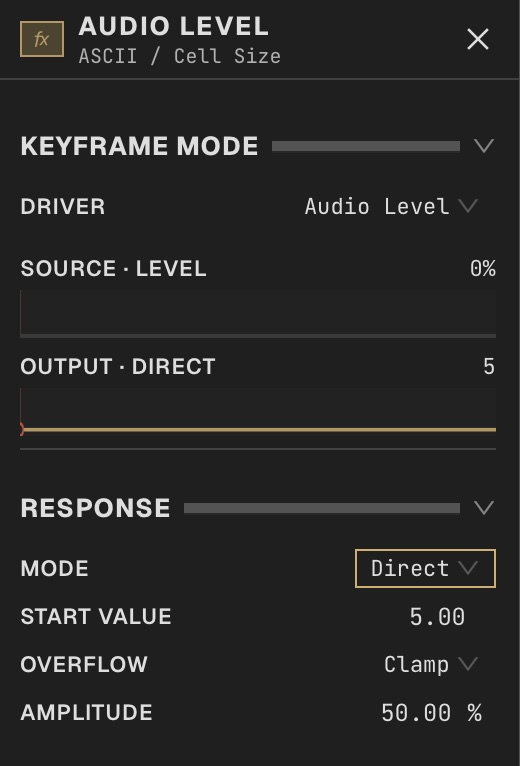
Choose Video or Live. Right-click a numeric parameter’s function button and choose an Audio driver. Select the new region on the parameter’s timeline track to open its inspector, then choose the audio source and signal. Play the composition and check that the value responds.
Choose a signal
Use level for overall loudness, a frequency band for bass or treble, or beat and onset signals for rhythm.
Choose Direct or Motion
In the selected Audio driver’s inspector, choose Direct to map the signal to the parameter value, then tune its output range and response. Choose Motion when sound should change the rate or progress of ongoing movement. Compare the result with quiet and loud parts of the input.
Align the beat
Use the shared BPM and beat controls in Audio. Live input shows the detected tempo and lock state when available.
Use Live
Choose Live and press Play to start attached live audio capture. Pause stops the performance clock and capture.
Export with audio
File and video soundtracks can be included in animation export. A live input has no saved performance to replay; use file-backed audio for repeatable export.