
Halftone
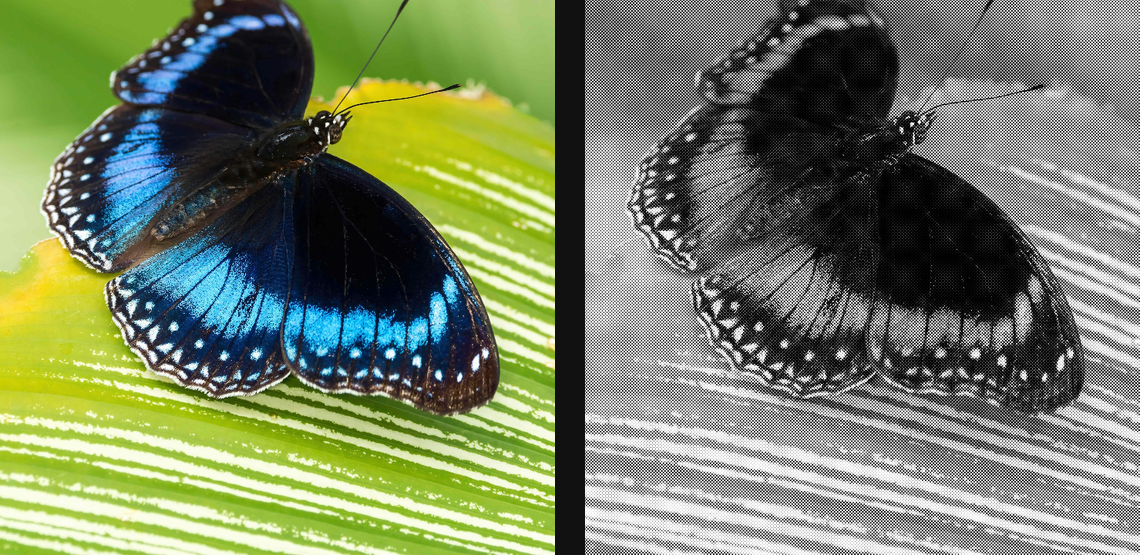
Convert tone into print dots, lines, or ellipse screens with mono, duotone, and CMYK colour models.
Add Halftone
Open an image or build the source composition first. Put this effect after the content it should process in stack processing order. Choose Texture & Pattern → Print → Halftone in the effects picker, or search for Halftone with Cmd/Ctrl + F. Select the new layer in Layers to open its Effect Panel.
Choose the print setup
Choose Mode for colour separation or a single ink, then set Dot Size, Shape and Angle. Begin with a clearly visible dot size.
Tune the plates
Adjust ink and paper settings, Threshold and Dot Gain for coverage. For separated colour, expand the individual plates to change angles or registration. Judge the dots at full quality; use final output scale or DPI when sizing the print.
Set an individual colour
Click the relevant colour swatch to open its picker. Colors and Palettes explains colour values, transparency and the canvas sampling controls where available.
Compare and finish
Toggle the layer eye to compare with the incoming composition. Use the Effect Panel footer for opacity and blend mode, or add a mask to limit the affected area. In Video or Live, use the function menu on a supported control to add keyframes or a driver.
Control reference
Show individual controls
| Control | What it does | Values and animation |
|---|---|---|
| Angle | orientation of the halftone grid — 45° is the newspaper classic | 0° to 360° Default: 45° Continuous keyframes |
| Black | key/black plate screen angle — usually carries the crisp detail | 0° to 360° Default: 45° Continuous keyframes |
| Black Offset X | Moves the black print plate horizontally to simulate registration error. | -20 to 20 Default: 0 Continuous keyframes |
| Black Offset Y | Moves the black print plate vertically to simulate registration error. | -20 to 20 Default: 0 Continuous keyframes |
| Cyan | cyan plate screen angle; the master grid angle is added on top | 0° to 360° Default: 15° Continuous keyframes |
| Cyan Offset X | Moves the cyan print plate horizontally to simulate registration error. | -20 to 20 Default: 0 Continuous keyframes |
| Cyan Offset Y | Moves the cyan print plate vertically to simulate registration error. | -20 to 20 Default: 0 Continuous keyframes |
| Dot Gain | physical ink spread for CMYK dots; higher darkens midtones | 0% to 100% Default: 18% Continuous keyframes |
| Dot Size | bigger cells = bigger dots, more graphic look | 0 to 20 %; 1 to 500 px (typed input: 1 to 2000) Default: 0.8 % Continuous keyframes |
| Magenta | magenta plate screen angle; offset it from cyan/black to control rosette interference | 0° to 360° Default: 75° Continuous keyframes |
| Magenta Offset X | Moves the magenta print plate horizontally to simulate registration error. | -20 to 20 Default: 0 Continuous keyframes |
| Magenta Offset Y | Moves the magenta print plate vertically to simulate registration error. | -20 to 20 Default: 0 Continuous keyframes |
| Shape | shape of each printed cell | Dot / Line / Square / Cross / Diamond / Ring / Ellipse / Euclidean Default: Dot Discrete keyframes |
| Black Generation | Controls how much shared CMY ink is replaced by the black plate. | 0% to 100% Default: 72% Continuous keyframes |
| Mode | Mono = black on white; Duotone = your ink + paper colours; CMYK = true four-colour print | Mono / Duotone / CMYK Default: Mono Discrete keyframes |
| Ink | Colour of the simulated printed ink in modes that use a custom ink/paper pair. | Colour Default: #000000 Colour keyframes |
| Ink Limit | Limits combined ink coverage across the simulated colour plates; lower values reduce heavy overprinting. | 0% to 100% Default: 72% Continuous keyframes |
| Overprint | Sets how much overlapping printed plates mix as ink layers. | 0% to 100% Default: 72% Continuous keyframes |
| Paper Absorption | Strength of paper absorption and paper-tooth variation in the simulated print coverage. | 0% to 100% Default: 24% Continuous keyframes |
| Paper | Colour of the paper substrate visible between and beneath the printed marks. | Colour Default: #ffffff Colour keyframes |
| Plate Curve | Shapes the tonal response of each simulated print plate. | 0% to 100% Default: 46% Continuous keyframes |
| Press Drift | Varies simulated plate alignment across the image. | 0% to 100% Default: 16% Continuous keyframes |
| Seed | Selects a repeatable random pattern for Halftone; the same seed repeats its layout. | 0 to 1000 Default: 0 Discrete keyframes |
| Trapping | Expands plate edges to cover small registration gaps. | 0% to 100% Default: 10% Continuous keyframes |
| Registration Marks | Overlay the printer's corner alignment targets — the Ben-Day look | On / Off Default: Off Discrete keyframes |
| Threshold | ink midpoint — higher pushes darker, lower pushes lighter | 0% to 100% Default: 50% Continuous keyframes |
| Yellow | yellow plate screen angle — usually the shallowest screen | 0° to 360° Default: 0° Continuous keyframes |
| Yellow Offset X | Moves the yellow print plate horizontally to simulate registration error. | -20 to 20 Default: 0 Continuous keyframes |
| Yellow Offset Y | Moves the yellow print plate vertically to simulate registration error. | -20 to 20 Default: 0 Continuous keyframes |