
Canvas
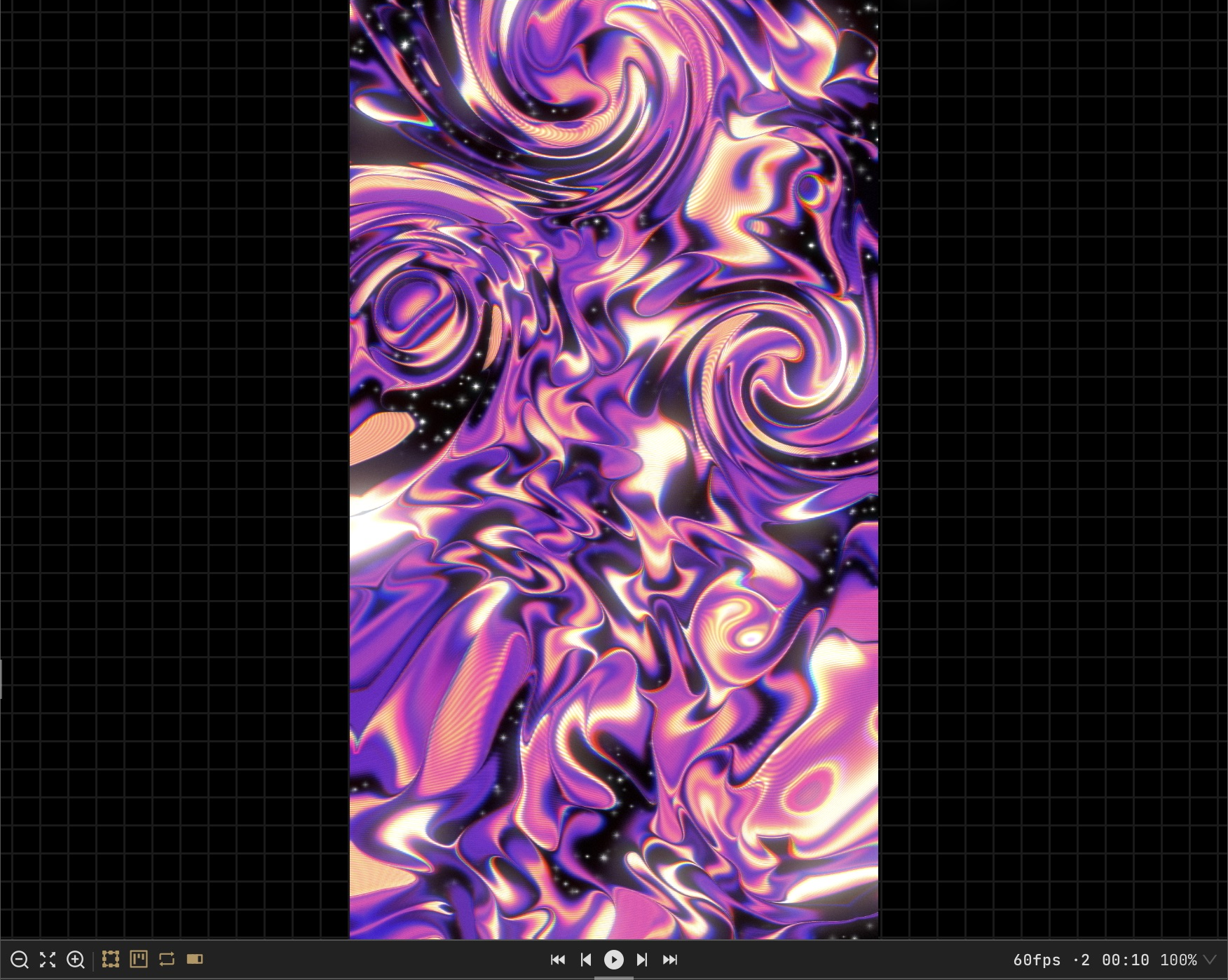
The canvas is the large composition preview in the centre of the workspace. Its lower edge contains zoom, fit and on-canvas handle controls; the timeline sits below it in Video and Live modes.
Pan and zoom
Use the − and + buttons at the lower-left edge of the canvas to zoom out or in. The fit button between them brings the whole composition into view. Scroll or drag empty canvas space to pan when a drawing tool or handle is not using that gesture. Zoom and pan change your view, not the exported dimensions.
Move a layer
Select a movable layer, then drag its handle or nudge it with the arrow keys. Shift increases the nudge distance.
Shortcut: Arrow keys
Transform a layer
Use the gizmo to move, scale, rotate, or change its anchor. The Effect Panel exposes the same controls.
Edit effect handles
Enable canvas handles in the footer to adjust supported centers, paths, pins, and regions directly.
Set canvas size and background
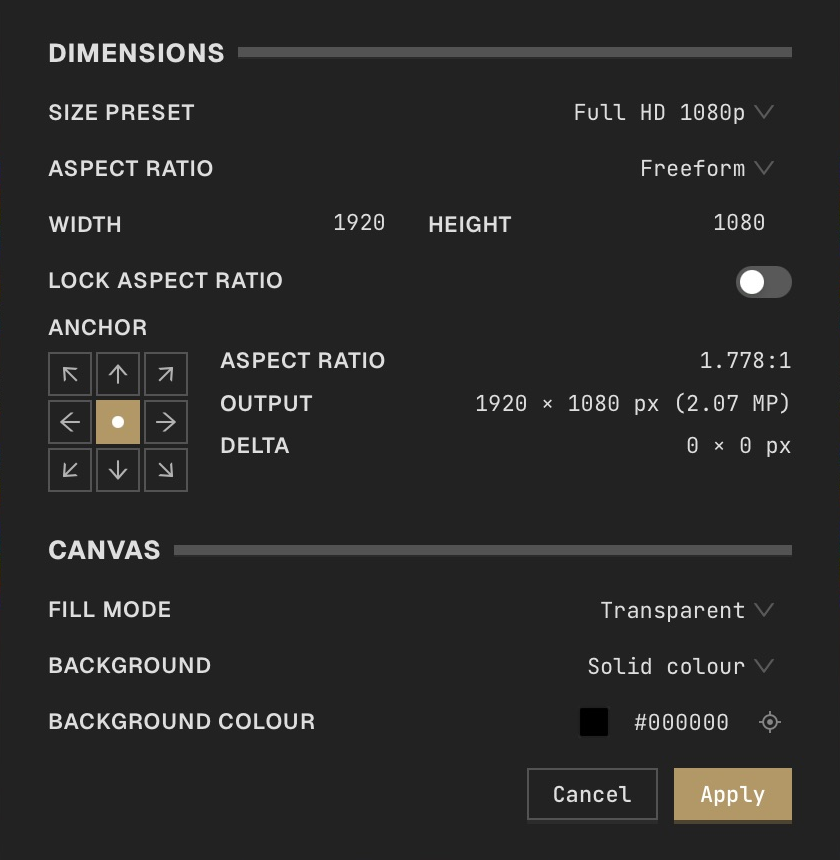
With a project open, choose Canvas → Canvas Size… from the app menu, or press Cmd/Ctrl + Alt + C. Choose a size preset or enter Width and Height, set the aspect lock and anchor, then choose the fill and background. Click Apply to change the canvas or Cancel to leave it unchanged. Crop and Resolution layers are separate operations inside the layer stack.
Cancel a render
Press Escape to cancel a long render.
Shortcut: Escape