
Spectral Barcode
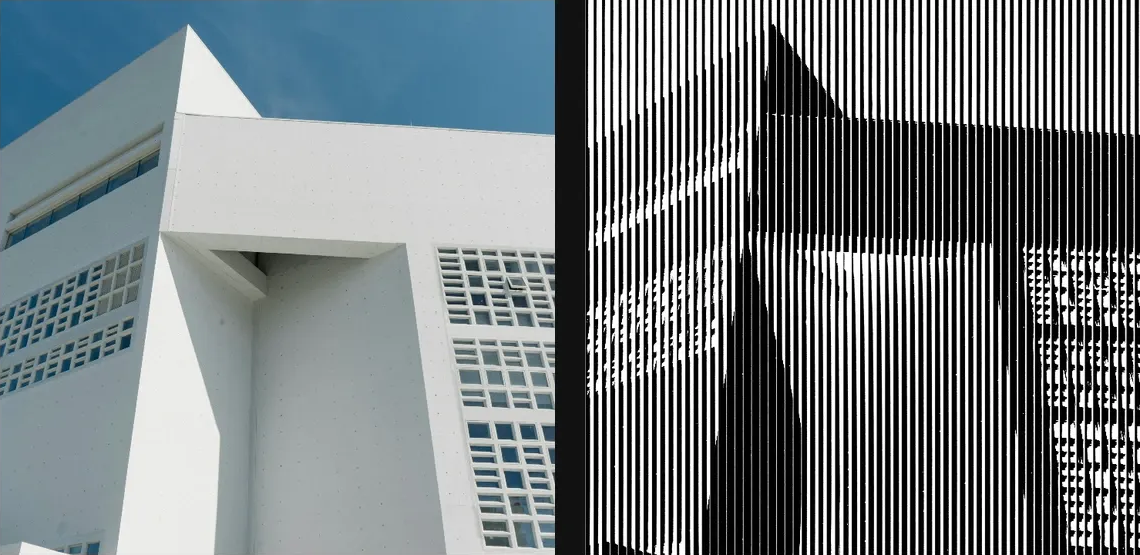
Convert image structure into barcode-like spectral stripes and stacked signal bands.
Add Spectral Barcode
Open an image or build the source composition first. Put this effect after the content it should process in stack processing order. Choose Glitch → Spectral Barcode in the effects picker, or search for Spectral Barcode with Cmd/Ctrl + F. Select the new layer in Layers to open its Effect Panel.
Lay out the bars
Choose Mode and set Angle and Bar Spacing for the signal geometry.
Set the print contrast
Choose Ink and Paper, then adjust Gap Depth and Chromatic for the tonal gaps and colour variation. Check the band scale at full quality.
Set an individual colour
Click the relevant colour swatch to open its picker. Colors and Palettes explains colour values, transparency and the canvas sampling controls where available.
Compare and finish
Toggle the layer eye to compare with the incoming composition. Use the Effect Panel footer for opacity and blend mode, or add a mask to limit the affected area. In Video or Live, use the function menu on a supported control to add keyframes or a driver.
Control reference
Show individual controls
| Control | What it does | Values and animation |
|---|---|---|
| Angle | orientation of the bars — 0 is vertical, 90 horizontal | 0° to 360° Default: 0° Continuous keyframes |
| Chromatic | splits the bars into red, green and blue fringes | 0% to 100% Default: 0% Continuous keyframes |
| Gap Depth | how dark the gaps between bars get in image mode | 0% to 100% Default: 100% Continuous keyframes |
| Ink | colour of the bars | Colour Default: #000000 Colour keyframes |
| Mode | lines is a flat two-tone barcode; image keeps the source colour | Lines / Image Default: Lines Discrete keyframes |
| Paper | colour behind the bars | Colour Default: #ffffff Colour keyframes |
| Bar Spacing | spacing between bars — smaller = denser barcode | 0 to 20 %; 1 to 500 px (typed input: 1 to 2000) Default: 1.5 % Continuous keyframes |