
Layers
Layers combine media and effects in order. Each layer can have its own visibility, blending, opacity, and mask.
Select and reorder
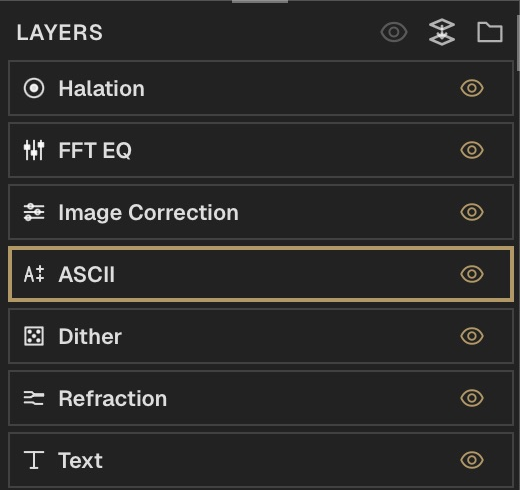
Click a row to select its layer and show its Effect Panel. Use Shift or Cmd/Ctrl to select several rows. Drag to change processing order: by default, the stack runs from bottom to top. Compare the canvas before and after moving an effect, since it receives the result of preceding layers.
Rename
Double-click the layer name to edit it.
Group layers
Select the rows to collect, then use the grouping action in their right-click menu. Expand the group to inspect its children. Enable Self-contained in its inspector when those children should start from transparent pixels rather than the incoming composition.
Blend and fade
Select the layer and use the Effect Panel footer for blend mode and opacity. Open the opacity control for individual channel opacity. The row eye enables or disables the layer; compare it off and on before reducing opacity for a subtler mix.
Animate visibility
In Video mode, use the footer function buttons to keyframe visibility, opacity, or individual color channels. Blend mode is a manual layer setting.
Duplicate or remove
Right-click for copy, cut, paste, reset, and delete. Duplicate keeps the original layer.
Shortcut: Cmd/Ctrl + D
Undo and redo
Undo reverses your last edit. Redo restores it. Use the Edit menu or Cmd/Ctrl + Z and Cmd/Ctrl + Shift + Z.
Open documentation
Right-click a layer and choose its documentation entry to open the matching guide.