Assets and Stock Media
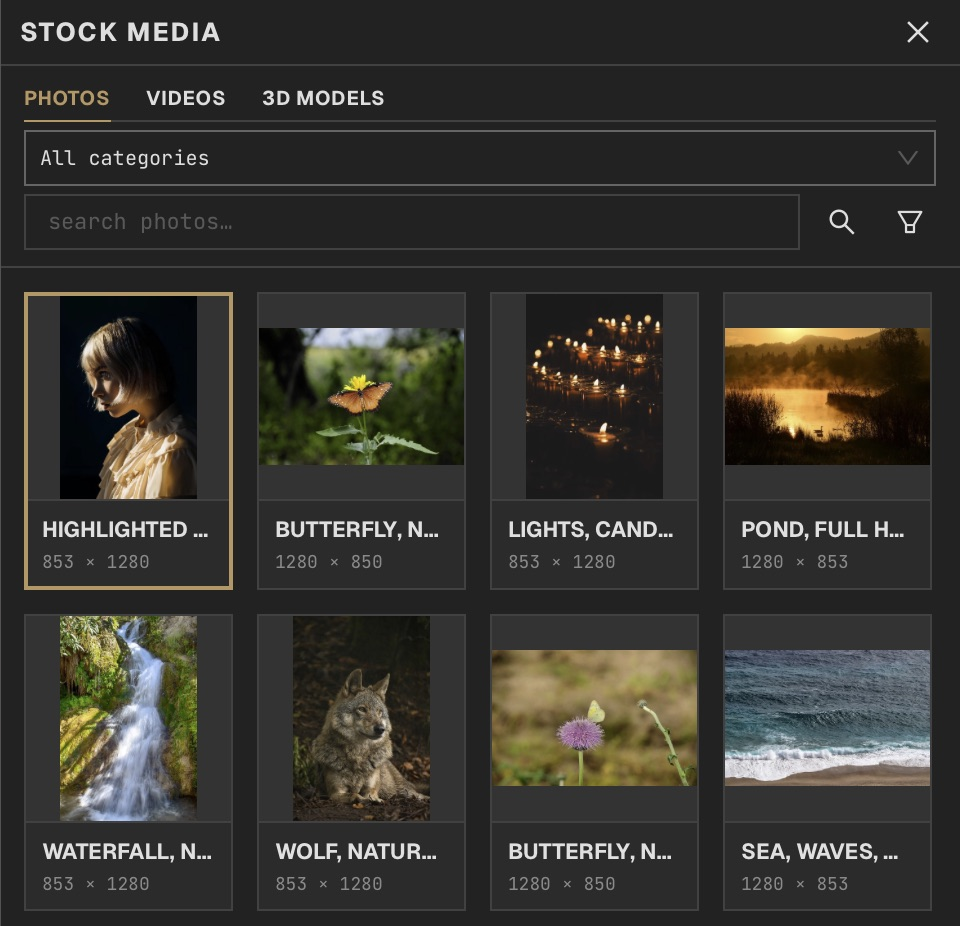
Keep reusable media in Assets, or browse Stock Media to find source material for a project.
Import assets
Click Assets in the right toolbar and choose Import assets. Add images, SVGs, videos, or GLB, GLTF, and OBJ models. You can import before opening a project.
Find an asset
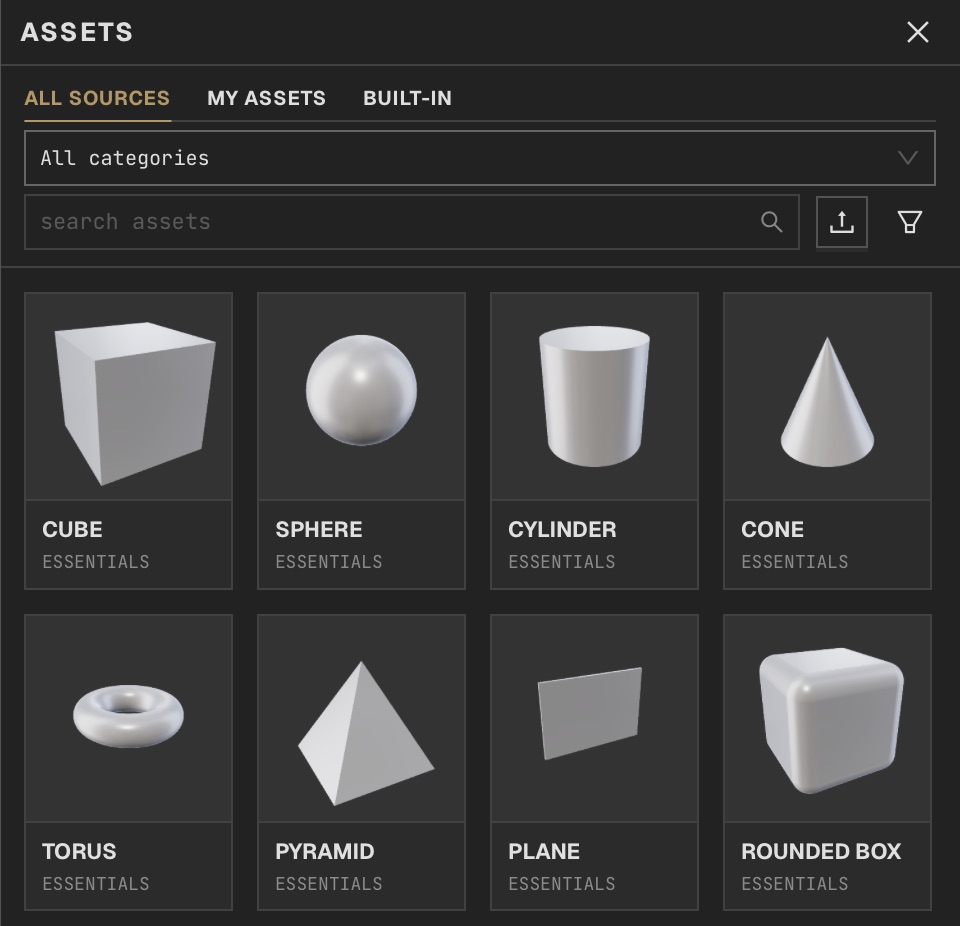
Open Assets from the right toolbar. Choose All sources, My assets or Built-in, search by name, then narrow with type and sorting filters. Select an item to inspect it before adding it.
Add to a project
With a project open, select an asset and choose Add to project, or drag it onto the canvas. Select its new layer in Layers to transform it. Personal SVGs become flat image layers; choose a 3D SVG layer and its SVG source control when you want extrusion.
Keep files available
Assets copies imported sources into your local library. Moving the originals does not remove the library copies.
Remove from library
Removing a library item leaves copies already added to projects intact.
Use Stock Media
Click Stock Media in the right toolbar, choose the media type and enter a search. Select a result to review its source and license, then use its add action to bring it into the project.