
Stipple
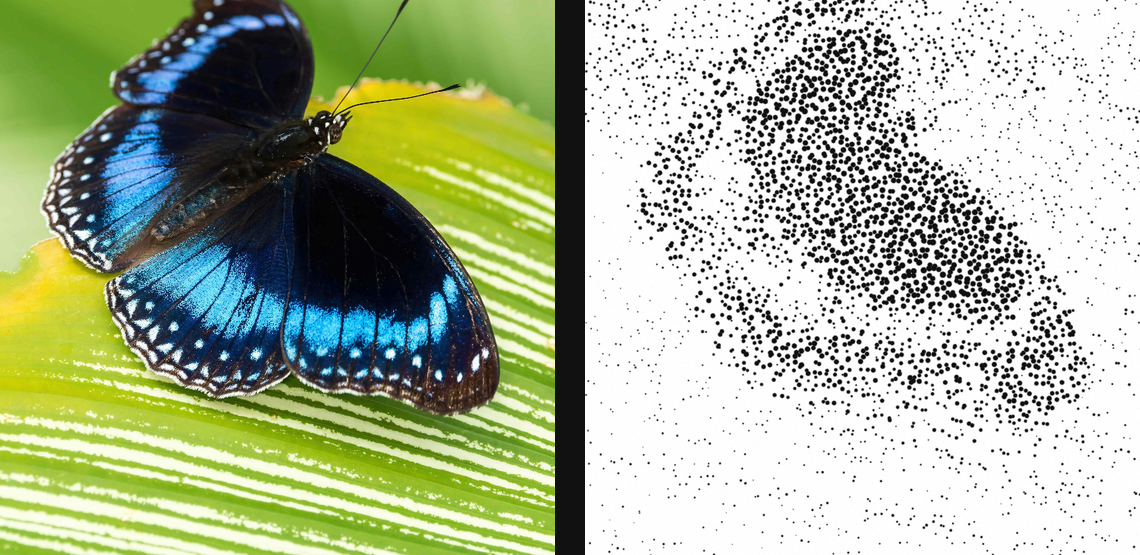
Translate tone into stippled dots for pen, ink, and scientific-illustration texture.
Add Stipple
Open an image or build the source composition first. Put this effect after the content it should process in stack processing order. Choose Texture & Pattern → Print → Stipple in the effects picker, or search for Stipple with Cmd/Ctrl + F. Select the new layer in Layers to open its Effect Panel.
Place the dots
Set Density and Spacing, then choose Distribution. Use Seed for another arrangement and Shape for the mark style.
Refine the drawing
Set Dot Scale, Minimum Dot and Size Variance. Adjust Gamma and Edge Detail to balance shaded regions; choose ink and paper colours for the final treatment.
Set an individual colour
Click the relevant colour swatch to open its picker. Colors and Palettes explains colour values, transparency and the canvas sampling controls where available.
Compare and finish
Toggle the layer eye to compare with the incoming composition. Use the Effect Panel footer for opacity and blend mode, or add a mask to limit the affected area. In Video or Live, use the function menu on a supported control to add keyframes or a driver.
Control reference
Show individual controls
| Control | What it does | Values and animation |
|---|---|---|
| Density | Dot admission in Blue Noise mode | 0 to 1.5 Default: 0.9 Continuous keyframes |
| Distribution | Blue Noise spaces dots as a density field; Organic Grid keeps the legacy jittered-cell look | Blue Noise / Organic Grid Default: Blue Noise Discrete keyframes |
| Random Rotation | Give each mark an independent rotation offset | 0% to 100% Default: 0% Continuous keyframes |
| Rotation | Rotates non-circular stipple dots. | 0° to 360° Default: 0° Continuous keyframes |
| Dot Roughness | Break up dot rims | 0% to 100% Default: 18% Continuous keyframes |
| Dot Scale | Overall dot size | 0 to 3 Default: 1.1 Continuous keyframes |
| Shape | Use circles or icon-like analytic marks for every point | Circle / Square / Diamond / Line / Cross / Star Default: Circle Discrete keyframes |
| Edge Detail | Grow and admit dots on local image edges | 0% to 100% Default: 35% Continuous keyframes |
| Gamma | Tone response — lower fattens the dots in shadows | 0.2 to 3 Default: 1 Continuous keyframes |
| Jitter | How far each dot wanders off its cell | 0% to 100% Default: 72% Continuous keyframes |
| Minimum Dot | Smallest visible highlight dot in Blue Noise mode | 0 to 0.5 Default: 0.08 Continuous keyframes |
| Paper Grain | Paper tooth and flecks | 0% to 100% Default: 8% Continuous keyframes |
| Mode | Mono = dark dots on white; Duotone = your ink + paper | Mono / Duotone Default: Mono Discrete keyframes |
| Ink | Colour of the simulated printed ink in modes that use a custom ink/paper pair. | Colour Default: #101010 Colour keyframes |
| Paper | Colour of the paper substrate visible between and beneath the printed marks. | Colour Default: #ffffff Colour keyframes |
| Seed | Deterministic random seed for generated structure. | 0 to 1000 Default: 0 Discrete keyframes |
| Size Variance | Random per-dot size variation | 0% to 100% Default: 34% Continuous keyframes |
| Spacing | Dot spacing — smaller is denser, finer stipple | 0 to 20 %; 1 to 500 px (typed input: 1 to 2000) Default: 1.2 % Continuous keyframes |