
Kaleidoscope
Reflect and rotate image wedges around a centre point for symmetrical kaleidoscope patterns.
Add Kaleidoscope
Open an image or build the source composition first. Put this effect after the content it should process in stack processing order. Choose Texture & Pattern → Mosaic & Tile → Kaleidoscope in the effects picker, or search for Kaleidoscope with Cmd/Ctrl + F. Select the new layer in Layers to open its Effect Panel.
Place the symmetry centre
Set Center X and Center Y, then choose Segments for the number of repeated wedges.
Compose the reflection
Adjust Rotation and Zoom to select the source area inside each wedge. Choose Edge for samples outside the image and use canvas handles for placement when available.
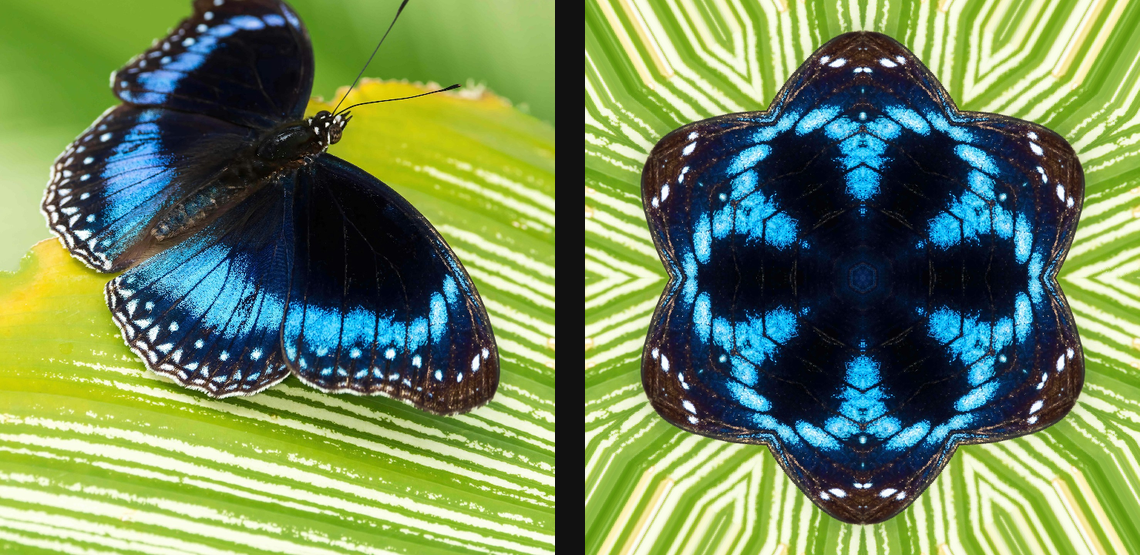
Compare and finish
Toggle the layer eye to compare with the incoming composition. Use the Effect Panel footer for opacity and blend mode, or add a mask to limit the affected area. In Video or Live, use the function menu on a supported control to add keyframes or a driver.
Control reference
Show individual controls
| Control | What it does | Values and animation |
|---|---|---|
| Center X | Horizontal centre point for radial modes. | 0 to 1 Default: 0.5 Continuous keyframes |
| Center Y | Vertical centre point for radial modes. | 0 to 1 Default: 0.5 Continuous keyframes |
| Edge | Chooses whether out-of-bounds samples clamp, repeat or mirror at the image edges. | Clamp / Wrap / Mirror / Transparent Default: Clamp Discrete keyframes |
| Rotation | Rotates the repeated kaleidoscope sectors. | -360° to 360° Default: 0° Continuous keyframes |
| Segments | Sets the number of mirrored kaleidoscope sectors. | 2 to 32 Default: 6 Discrete keyframes |
| Zoom | Scales the image inside the repeated kaleidoscope sectors. | 0.1 to 4 Default: 1 Continuous keyframes |