
Masking
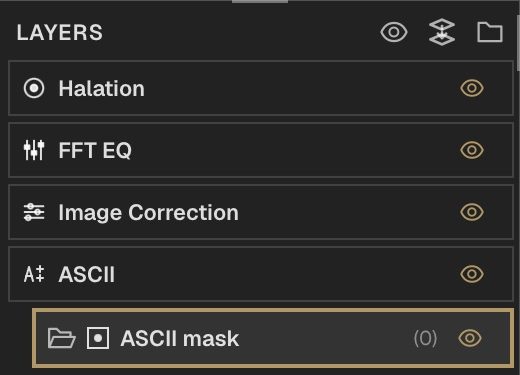
A mask controls which parts of a layer are visible. Each layer or group can have one mask folder.
Add a mask
Select the layer or group you want to limit, right-click it and choose Add Mask. Select the new mask folder before adding Brush, media or effects so they enter that mask. Paint white on a black base for a luminance mask, or build transparent and opaque content for an alpha mask.
Choose how it reads
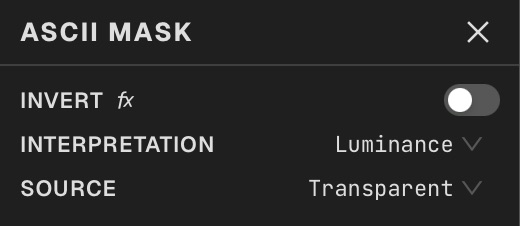
Select the mask folder to open its inspector. Choose Luminance to read brightness, or Alpha to read transparency. Invert swaps the visible and hidden areas. Source chooses whether the mask stack starts from transparent pixels or from the incoming image. Use Q to check the mask while refining it.
Enable or disable
Toggle the mask folder eye without changing the layer’s visibility.
Preview quick mask
Use the Layers header button to show the active mask overlay.
Shortcut: Q
Reuse a mask
The Mask submenu can copy, paste, convert to a layer, or delete the mask.
Select a subject
Use Select for wand and lasso selections, or Smart Mask to find a foreground subject. Refine the result in your mask stack.
Use effect fields
Some effects offer Effect Area, Caster Field or Depth Field controls. Choose Source Alpha, Source Luminance, Layer Mask, Procedural or Image Map as their Source. Procedural exposes a shape and feather; Image Map offers Choose map…, Channel and Fit. Black Point, White Point, Invert and Blur refine the field. None leaves an optional field unused. These are inputs to the effect; the layer mask folder still controls the final layer visibility.