
Chroma Crush
Reduce colour detail while keeping brightness sharp, creating the colour bleed of low-bitrate video.
Add Chroma Crush
Open an image or build the source composition first. Put this effect after the content it should process in stack processing order. Choose Glitch → Byte & Color Damage → Chroma Crush in the effects picker, or search for Chroma Crush with Cmd/Ctrl + F. Select the new layer in Layers to open its Effect Panel.
Reduce colour detail
Increase Chroma Block so colour is averaged over larger regions while brightness detail remains.
Offset the colour
Adjust Chroma Shift to misalign the colour with the luminance structure. Inspect saturated edges and blend the result with opacity when the shift is too strong.
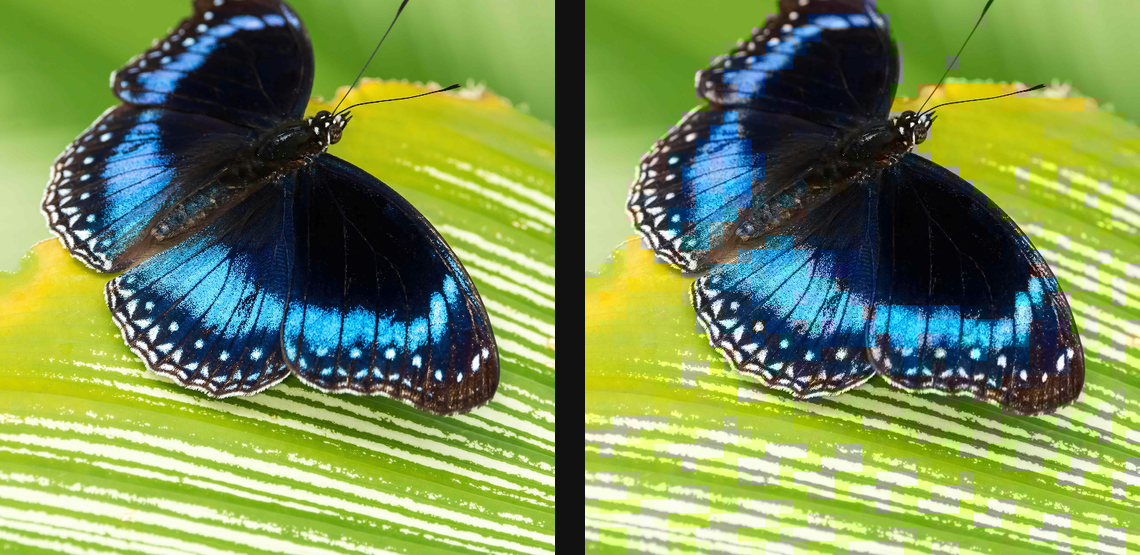
Compare and finish
Toggle the layer eye to compare with the incoming composition. Use the Effect Panel footer for opacity and blend mode, or add a mask to limit the affected area. In Video or Live, use the function menu on a supported control to add keyframes or a driver.
Control reference
Show individual controls
| Control | What it does | Values and animation |
|---|---|---|
| Chroma Block | size of the colour blocks — luma stays sharp, colour goes blocky | 0 to 20 %; 1 to 500 px (typed input: 1 to 2000) Default: 2.5 % Continuous keyframes |
| Chroma Shift | horizontally offsets the colour blocks — registration bleed | -50 to 50 %; -256 to 256 px (typed input: -2000 to 2000) Default: 0 % Continuous keyframes |