
Mosaic
Tile the source into square, brick, hex, or diamond cells with sampled colour.
Add Mosaic
Open an image or build the source composition first. Put this effect after the content it should process in stack processing order. Choose Texture & Pattern → Mosaic & Tile → Mosaic in the effects picker, or search for Mosaic with Cmd/Ctrl + F. Select the new layer in Layers to open its Effect Panel.
Choose the tessellation
Set Pattern and Tile Size for the arrangement. Increase Grout to separate the tiles.
Light the tiles
Adjust Depth, Bevel and Light Angle for relief. Use Dispersion sparingly when you want a more glass-like colour separation.
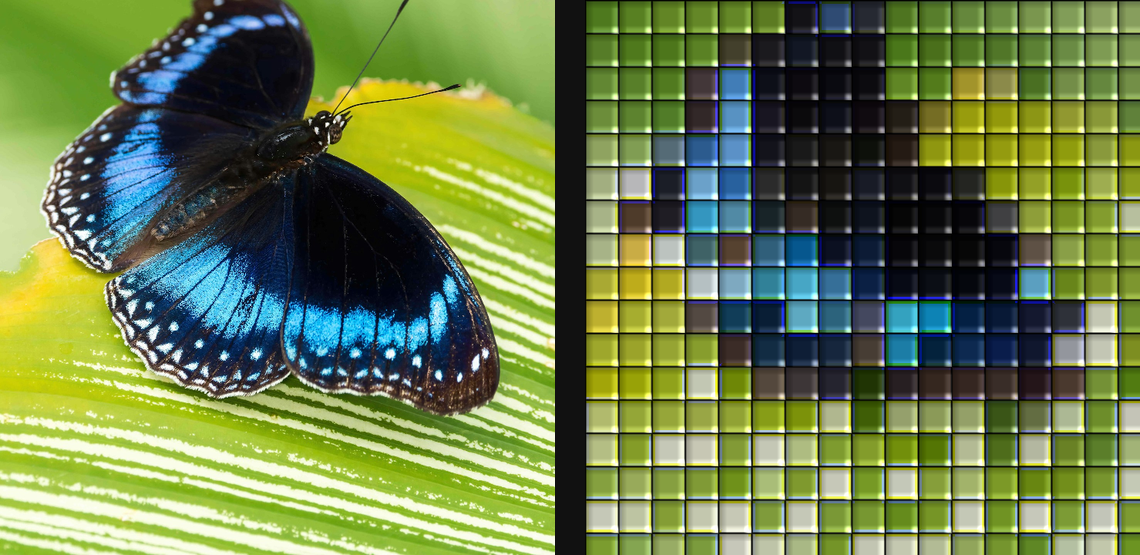
Compare and finish
Toggle the layer eye to compare with the incoming composition. Use the Effect Panel footer for opacity and blend mode, or add a mask to limit the affected area. In Video or Live, use the function menu on a supported control to add keyframes or a driver.
Control reference
Show individual controls
| Control | What it does | Values and animation |
|---|---|---|
| Bevel | width of the sloped tile edge | 0% to 100% Default: 50% Continuous keyframes |
| Tile Size | tile pitch; Blocks uses this as the brick height | 0 to 20 %; 1 to 500 px (typed input: 1 to 2000) Default: 6 % Continuous keyframes |
| Depth | how strongly tile bevels and studs catch the light | 0 to 1 Default: 0.6 Continuous keyframes |
| Dispersion | colour split from refracting neighbouring tiles at edges | 0% to 100% Default: 30% Continuous keyframes |
| Grout | dark separation band between tiles | 0% to 90% Default: 10% Continuous keyframes |
| Light Angle | direction of the key light over the raised tiles | 0 to 360 Default: 135 Continuous keyframes |
| Pattern | tile shape: Blocks adds raised circular studs, Brick is flat running-bond, Square is the legacy lattice | Square / Brick / Blocks / Hex / Diamond Default: Square Discrete keyframes |