
Diffusion Glow
Apply a soft diffusion-filter haze that blooms highlights without fully washing out shadows.
Add Diffusion Glow
Open an image or build the source composition first. Put this effect after the content it should process in stack processing order. Choose Optics → Light → Glow → Diffusion Glow in the effects picker, or search for Diffusion Glow with Cmd/Ctrl + F. Select the new layer in Layers to open its Effect Panel.
Select the light
Set Threshold and Softness to control which bright areas diffuse. Use Radius for the spread and Falloff for the way the light fades.
Balance the glow
Compare with the layer eye. Increase Intensity gradually and retain detail in bright areas. Use footer opacity or a mask to keep the treatment under control.
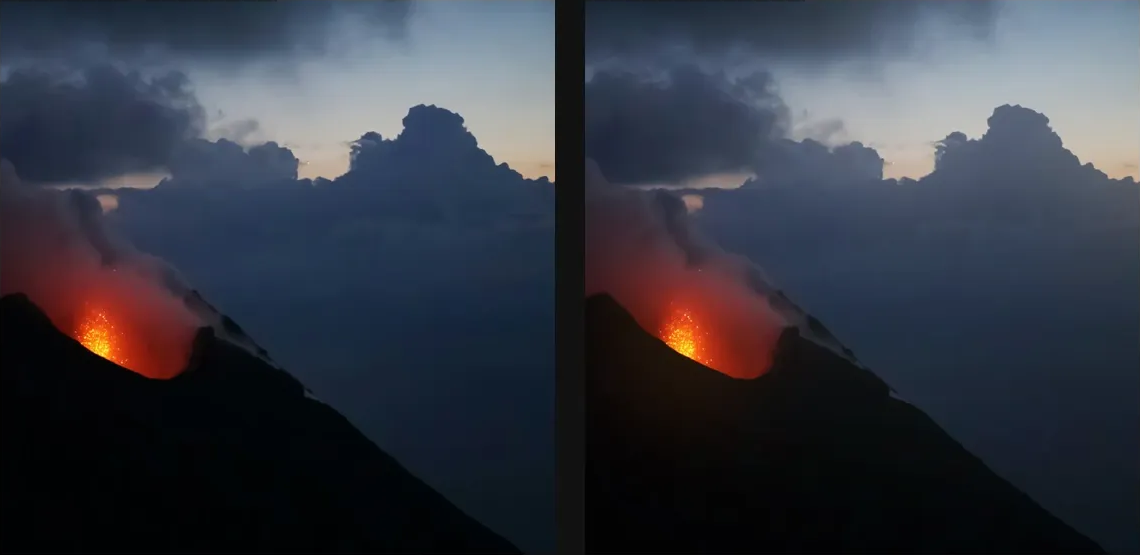
Compare and finish
Toggle the layer eye to compare with the incoming composition. Use the Effect Panel footer for opacity and blend mode, or add a mask to limit the affected area. In Video or Live, use the function menu on a supported control to add keyframes or a driver.
Control reference
Show individual controls
| Control | What it does | Values and animation |
|---|---|---|
| Falloff | Shapes the brightness-mask curve above Threshold; higher values concentrate diffusion on brighter highlights. | 1 to 8 Default: 1.5 Continuous keyframes |
| Intensity | Contribution of the diffused highlight light around bright source regions. | 0% to 100% Default: 90% Continuous keyframes |
| Radius | Distance over which extracted highlight light is diffused. | 0.1 to 50 %; 1 to 400 px (typed input: 1 to 2000) Default: 30 % Continuous keyframes |
| Softness | Increases the contribution of the broad diffused veil around the tighter highlight glow. | 0% to 100% Default: 60% Continuous keyframes |
| Threshold | Minimum source brightness that contributes to the diffusion light mask. | 0% to 100% Default: 50% Continuous keyframes |