
Canvas Output
Present the Live composition in a separate window or send it to another app as a virtual camera.
Open the inspector
Open Canvas Output from the right toolbar. Choose Switch to Live if needed.
Open the output window
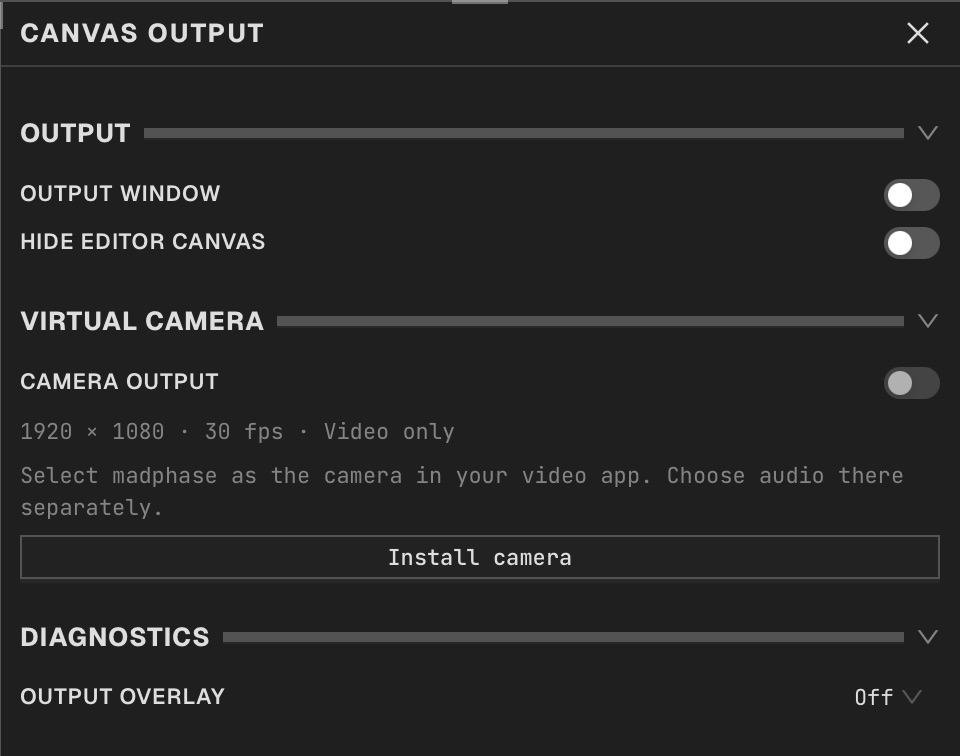
In the Canvas Output inspector, enable Output window. Move the new window to the target display or projector and use its fullscreen control. Press Play in Live when the composition should move.
Hide the editor canvas
Enable Hide editor canvas to hide the editor preview while output continues. The rest of the editor stays available.
Set the rate and overlay
Adjust the frame-rate limit. Output overlay offers Off, FPS, or Detailed.
Set up the virtual camera
Use Install camera in the Virtual camera section and follow the platform setup controls. Then enable Camera output and select madphase in Zoom, OBS, or another camera app.
Route audio separately
The virtual camera sends video. Choose the microphone or audio source in the receiving app.
Stop output
Turn output off or close the output window. Leaving Live or closing the project stops output. Closing only the inspector leaves output running.