
Presets
Save a look once and reuse it. Presets can contain one layer, a group, or a full stack.
Apply a preset
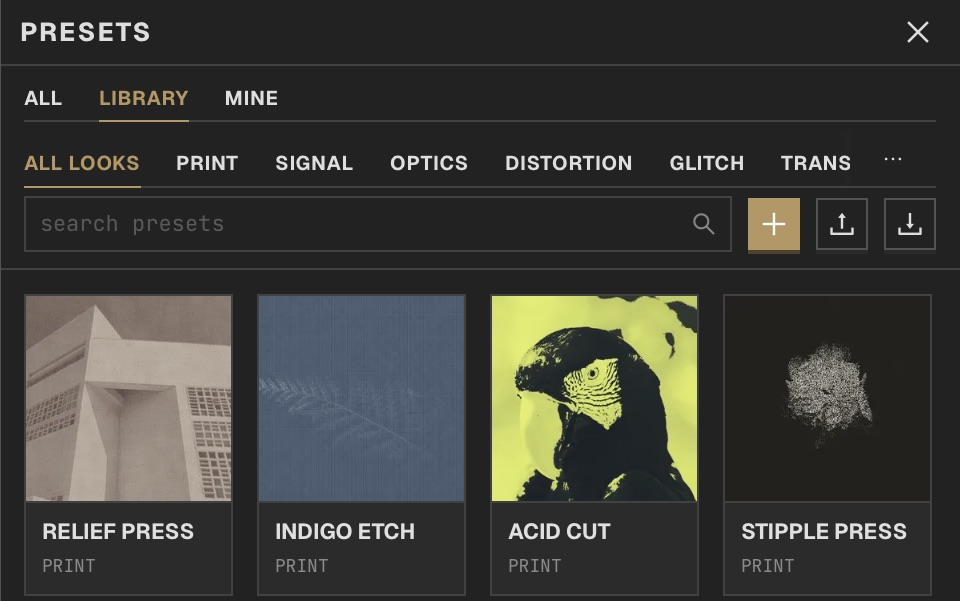
Open a project, then click Presets in the right toolbar. Use Library for bundled presets, Mine for your own, or All for both. Choose a look category or search by name. Click a card to inspect it, then choose its apply action; double-clicking a card applies it directly.
Save a preset
Right-click a layer or group and choose Save as Preset. To capture the complete stack, use the + button beside the preset search field. Give the preset a name and save it to your library.
Use a Smart Preset
Apply a Smart Preset, then select its group in Layers. Adjust its surfaced master controls to change the coordinated look and inspect its timeline regions in Video or Live. Expand the group when you want to inspect the underlying layers.
Build master controls
Select the group or layers, right-click and choose Save as Smart Preset…. In Save Smart Preset, use Add knob to create a master control, choose its linked layer parameters and set their ranges. Move the knob through its range to check the response before saving.
Share presets
Import or export personal presets from the Presets panel. Keep a .mphase project when you need the complete composition.