
Preview and Performance
Lower preview quality while editing heavy stacks. Still export renders at full quality.
Set preview quality
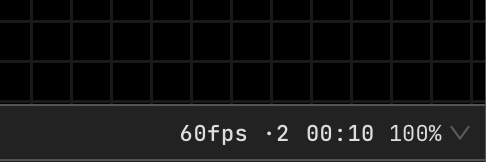
Use the Render quality selector at the lower-right edge of the canvas for the current preview. Set the default in Settings → Effects → Default render quality. Lower scales reduce work while editing; they do not change still-export dimensions.
Choose playback behavior
Open Settings → Effects → Live behavior. Every frame keeps each frame; Drop frames follows real time under load. Temporal effects require frame order.
Cache a preview
In Video, enable preview frame cache in the canvas footer and play the timeline once to fill it. Play it again to inspect cached motion. Changes to the stack invalidate affected frames; live inputs bypass this cache.
Limit output rate
Use the frame-rate limit in Canvas Output for Live presentation. Lower it when the stack cannot keep up.
Inspect output
Open Canvas Output from the right toolbar and choose FPS or Detailed in Output overlay. Run the composition in Live and inspect the output frame rate while changing the rate limit or preview quality.
Handle render errors
Use the error message’s retry and report actions. Open log file makes relevant logs available for a support report.